MKV Files Not Showing Picture in Shotcut? How to Fix It
5 min read
Few things are more frustrating than importing a video file into your editor and seeing… nothing. If you are working in Shotcut and your MKV file shows audio but no picture, or displays a black screen in the preview monitor, you are not alone. This issue is more common than many users realize, and in most cases, it is completely fixable with the right approach.
TLDR: If your MKV file is not showing video in Shotcut, the problem is usually caused by unsupported codecs, hardware decoding conflicts, file corruption, or driver issues. Updating Shotcut, disabling hardware decoding, converting the file to an editable format, or installing the correct codec support typically resolves the issue. MKV is a container format, so the real problem often lies in the video codec inside the file, not the MKV file itself.
Understanding the Problem: MKV Container vs. Video Codec
Before diving into fixes, it is important to understand a critical technical point: MKV is not a video codec.
MKV (Matroska Video) is a container format. This means it can hold many different types of video, audio, subtitle, and metadata streams. The actual video inside the MKV file may be encoded using:
- H.264 (AVC)
- H.265 (HEVC)
- VP9
- AV1
- MPEG-2
- Other less common codecs
If Shotcut does not properly support or decode the specific codec inside your MKV file, you may see:
- A black preview screen
- Audio playing with no video
- Frozen frames
- A file that refuses to load
This distinction is crucial. Most “MKV issues” are actually codec compatibility issues.
1. Update Shotcut to the Latest Version
The first and simplest solution is updating Shotcut. The program relies heavily on FFmpeg, and each new version improves compatibility with modern codecs.
Why this works:
- Newer versions add support for modern codecs (especially HEVC and AV1).
- Bug fixes often resolve black screen preview problems.
- Improved GPU compatibility.
What to do:
- Go to the official Shotcut website.
- Download the newest stable release.
- Install it over your current version (or perform a clean reinstall if needed).
After updating, reopen your MKV file and test playback in both the Source and Timeline preview windows.
2. Disable Hardware Decoding
Hardware acceleration is a frequent cause of missing video previews. While GPU decoding improves performance, it can conflict with certain drivers or unsupported codecs.
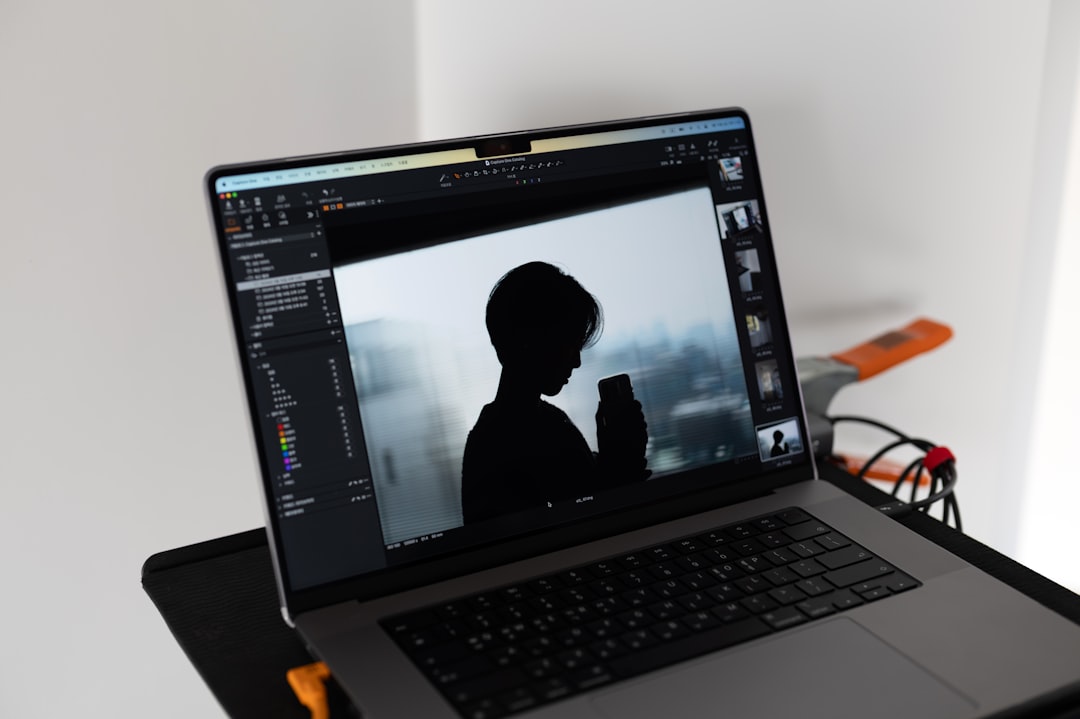
How to disable hardware decoding in Shotcut:
- Open Shotcut.
- Go to Settings.
- Find Hardware Decoding.
- Uncheck or disable it.
- Restart Shotcut.
Why this helps:
- Forces Shotcut to use software decoding instead of GPU.
- Bypasses faulty GPU drivers.
- Eliminates crashes caused by partial hardware support for HEVC or 10-bit video.
If your video suddenly appears after disabling hardware decoding, the issue was almost certainly GPU-related.
3. Convert the MKV File to an Editing-Friendly Format
Sometimes the fastest solution is not fixing the editor — it is converting the file into a format better suited for editing.
Editing-friendly formats include:
- MP4 (H.264)
- ProRes
- DNxHD/DNxHR
Why conversion works:
- Eliminates unusual codecs.
- Removes problematic metadata.
- Transforms variable frame rate into constant frame rate.
You can use tools such as HandBrake or FFmpeg to perform the conversion.
Recommended settings for broad compatibility:
- Container: MP4
- Video Codec: H.264 (x264)
- Framerate: Constant
- Audio: AAC
If the converted file works perfectly in Shotcut, then the original MKV contained an unsupported or unstable encoding configuration.
4. Check for Variable Frame Rate (VFR) Issues
MKV files recorded from screen capture software, OBS, or smartphones often use Variable Frame Rate (VFR). Editing software sometimes struggles with VFR files, leading to black previews or desynchronized playback.
Symptoms of VFR problems:
- Audio plays, but video is frozen.
- Timeline behaves erratically.
- Exported video has sync problems.
Solution: Convert the video to Constant Frame Rate (CFR) using HandBrake:
- Open the file in HandBrake.
- Select the “Video” tab.
- Choose “Constant Framerate.”
- Export and re-import into Shotcut.
This step alone resolves many preview problems.
5. Update or Reinstall Graphics Drivers
Outdated or corrupted GPU drivers frequently interfere with video preview rendering.
If you experience:
- Random black preview screens
- Flickering
- Application crashes
Then your drivers may be the root cause.
Recommended actions:
- Download the latest drivers directly from NVIDIA, AMD, or Intel.
- Avoid relying solely on automatic Windows or macOS updates.
- Perform a clean driver installation if problems persist.
After updating, reboot your system before reopening Shotcut.
6. Verify File Integrity
Sometimes the issue is not Shotcut at all — the MKV file itself may be partially corrupted.
Signs of corruption:
- File plays with glitches in other media players.
- Playback randomly freezes.
- The file size seems unusually small.
Test the file in:
- VLC Media Player
- MPV Player
- Another editing program
If the file fails elsewhere, you likely need to:
- Re-transfer it from the source device.
- Re-download it.
- Recover it using video repair software.
7. Clear Shotcut Cache
Damaged cache files can sometimes prevent proper rendering.
To clear Shotcut cache:
- Close Shotcut.
- Navigate to the Shotcut settings or app data folder.
- Delete the cache folder (do not delete project files).
- Restart the application.
This forces Shotcut to rebuild temporary files from scratch.
8. Check for 10-bit or HEVC Compatibility
If your MKV contains H.265 (HEVC) or 10-bit color video, this may exceed what your system or GPU can decode smoothly.
Common scenario:
- Playback works in VLC.
- Black preview in Shotcut.
- Older integrated GPU hardware.
In such cases, converting the file to:
- H.264 8-bit
- ProRes
- DNxHR
Often eliminates the problem completely.
9. Match Project Video Mode to Your Footage
Shotcut projects have a specific video mode (resolution and frame rate). If your footage differs significantly from the project settings, playback issues can occur.
Fix:
- Open your MKV file in the Source panel first.
- Click “Set to Match Source.”
- Then begin editing.
This ensures resolution, aspect ratio, and frame rate are aligned.
When None of the Fixes Work
If you have:
- Updated Shotcut
- Disabled hardware decoding
- Converted the file
- Updated drivers
- Confirmed file integrity
And the problem persists, consider these possibilities:
- Your system hardware may be below minimum requirements.
- The MKV may contain an uncommon codec build.
- Your operating system is missing critical multimedia components.
In professional editing environments, transcoding footage into an editing codec before import is standard practice. Even if it feels like an extra step, it delivers stability and smoother workflow.
Best Practices to Avoid MKV Playback Problems
To prevent future editing disruptions:
- Record in MP4 (H.264) when possible.
- Avoid variable frame rate for editing projects.
- Keep your GPU drivers updated.
- Regularly update Shotcut.
- Transcode high-efficiency formats before editing.
These habits significantly reduce compatibility issues.
Final Thoughts
If your MKV file is not showing picture in Shotcut, the issue is almost always technical rather than catastrophic. In most situations, the problem stems from codec incompatibility, hardware decoding conflicts, or driver issues — all of which are solvable.
Approach the problem methodically. Update the software. Disable hardware decoding. Convert the file if necessary. Verify drivers and file integrity. One of these steps almost always restores proper video preview.
Video editing depends heavily on codec compatibility and system configuration. Once you understand that MKV is merely a container — not the root problem — troubleshooting becomes clearer and more precise. With the right adjustments, Shotcut remains a capable and reliable editor for MKV-based workflows.