How to Fix Surface Pro 4 Overheating Issue
8 min read
Surface Pro 4 overheating is a common problem that can affect performance, battery life, and overall usability. The device may become unusually hot during updates, video calls, charging, browsing with many tabs, or running demanding applications. In many cases, the issue can be reduced by improving airflow, updating system software, lowering background activity, and checking for battery or hardware problems.
TLDR: A Surface Pro 4 that overheats should first be checked for blocked ventilation, heavy background processes, outdated firmware, and power settings that push the processor too hard. Cleaning the vents, installing Windows and Surface updates, reducing startup programs, and using a balanced power mode often improves temperature. If overheating continues during light use, the battery, fan, thermal paste, or internal components may need professional inspection. The device should not be used if it becomes extremely hot, shuts down repeatedly, or shows battery swelling.
Why the Surface Pro 4 Overheats
The Surface Pro 4 is a thin, compact device that combines tablet portability with laptop-level performance. Because of its slim design, it has limited internal space for cooling. Heat can build up quickly when the processor, display, battery, and storage are under load at the same time.
Several conditions can cause or worsen overheating. The most common include dust buildup, poor ventilation, outdated drivers, high CPU usage, charging during heavy tasks, aging batteries, and background apps that continuously consume system resources. Some units may also overheat because of hardware wear, especially if the device has been used for many years.
Overheating may appear as:
- The back of the Surface Pro 4 becoming very hot to the touch
- The fan running loudly or constantly
- Sudden slowdowns, freezing, or lag
- Random shutdowns or restarts
- Battery draining faster than usual
- Warning messages about temperature
When these symptoms appear frequently, the device should be checked carefully before more serious damage occurs.

1. Place the Surface Pro 4 on a Hard, Flat Surface
The Surface Pro 4 relies on proper airflow to release heat. If it is placed on a bed, sofa, pillow, blanket, or lap, the ventilation area can become blocked. Soft surfaces trap heat around the device and prevent warm air from escaping.
The device should be placed on a hard, flat, and clean surface such as a desk or table. If it is used for long sessions, a stand can help by keeping the back exposed to open air. This simple change can reduce temperature significantly, especially during streaming, video meetings, or multitasking.
Avoid using the Surface Pro 4 in direct sunlight or near heaters. Warm room temperature can make overheating worse because the cooling system has less cool air available.
2. Close Heavy Background Apps
One of the fastest ways to reduce heat is to close unnecessary applications. Programs running in the background can use CPU, memory, disk, and network resources without being obvious. This can make the processor work harder and generate more heat.
The owner can check activity through Task Manager:
- Press Ctrl + Shift + Esc to open Task Manager.
- Select the Processes tab.
- Sort by CPU, Memory, or Disk.
- Identify apps using unusually high resources.
- Close unnecessary programs by selecting them and choosing End task.
Common causes include browsers with many tabs, cloud sync tools, video editors, games, antivirus scans, and communication apps. If one app consistently causes overheating, it may need to be updated, repaired, replaced, or removed.
3. Restart the Device
A restart can clear temporary system issues that cause overheating. After days or weeks of sleep mode, background services may become stuck, updates may remain pending, or memory usage may rise. Restarting refreshes the operating system and can stop runaway processes.
The Surface Pro 4 should be restarted by opening the Start menu, selecting Power, and choosing Restart. A full restart is better than simply closing the Type Cover or pressing the power button, as those actions often place the device into sleep mode instead of fully refreshing the system.
4. Install Windows and Surface Updates
Microsoft releases updates that can improve device stability, power management, firmware behavior, and thermal performance. An outdated Surface Pro 4 may run hotter because of older drivers or unresolved system bugs.
To check for updates, the user should open:
- Settings
- Windows Update
- Check for updates
All available Windows updates should be installed. After installation, the device may need to restart several times. It is also useful to check for optional driver or firmware updates, as these may include Surface-specific improvements.
If the device has not been updated in a long time, it may become hot during the update process. This is usually temporary because updates use CPU and disk resources heavily. The Surface should be kept on a hard surface and connected to power while updates complete.
5. Adjust Power Mode Settings
Performance settings can affect heat. When the Surface Pro 4 is set to maximum performance, the processor may run at higher speeds more often. This can improve responsiveness but also increase temperature.
For everyday use, a balanced or battery-saving mode is usually better. The user can select the battery icon in the taskbar and choose a lower performance setting. In Windows settings, it may appear as Power mode. Choosing Balanced or Best power efficiency can reduce heat during browsing, writing, reading, and streaming.
This setting is especially helpful when the device is being used while charging. Charging already creates extra heat, so lowering performance during that time can help keep the system cooler.
6. Reduce Startup Programs
Too many startup programs can make the Surface Pro 4 heat up soon after it is turned on. Cloud storage tools, messaging apps, game launchers, printer utilities, and update managers may all start automatically and run in the background.
Startup programs can be managed through Task Manager:
- Open Task Manager.
- Select the Startup apps tab.
- Review the listed programs.
- Disable apps that are not needed at startup.
Disabling a startup app does not usually uninstall it. It only prevents the app from opening automatically when Windows starts. This can reduce boot time, background activity, and heat.
7. Scan for Malware
Malware, unwanted browser extensions, and suspicious background processes can cause high CPU usage. A Surface Pro 4 that overheats while idle may be running hidden processes without the owner realizing it.
A full security scan should be performed using Windows Security or another trusted security program. In Windows Security, the user can open Virus & threat protection and select a Full scan. Any detected threats should be removed or quarantined.
Browser extensions should also be reviewed. Extensions that inject ads, track activity, or run scripts in the background may increase resource usage. Removing unnecessary extensions can make the browser lighter and cooler.
8. Clean the Vents Carefully
Dust can collect in and around the ventilation openings over time. Even a small amount of dust can reduce airflow in a compact device. If warm air cannot escape properly, the internal temperature rises.
The vents should be cleaned gently. The Surface Pro 4 should be turned off and disconnected from the charger first. A soft brush, microfiber cloth, or short bursts of compressed air can help remove dust from the edges and vent areas. Compressed air should be used carefully and not held too close to the device.
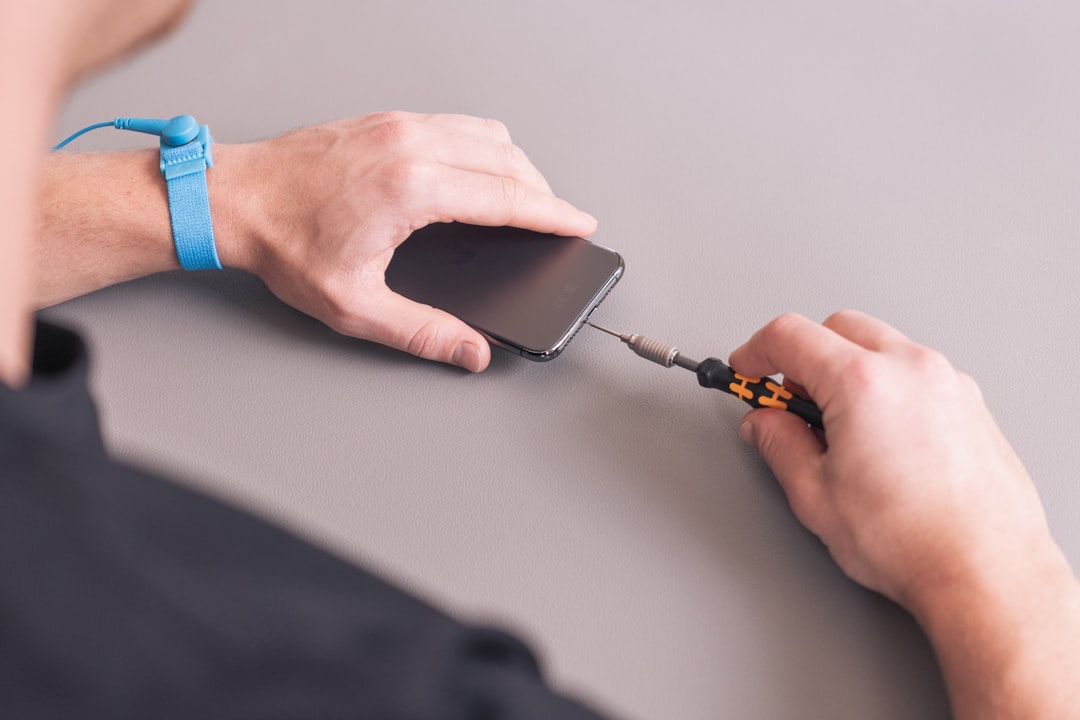
The device should not be opened unless handled by a skilled technician. The Surface Pro 4 is difficult to repair, and improper disassembly can crack the screen or damage internal cables.
9. Avoid Heavy Use While Charging
Charging creates heat, and heavy workloads create even more heat. When both occur at the same time, the Surface Pro 4 may overheat more easily. This is common during gaming, video editing, large downloads, Windows updates, and long video calls.
If possible, demanding tasks should be performed after the battery has charged. Alternatively, the owner can lower screen brightness, close extra apps, and use a cooler environment while charging. The original or high-quality compatible charger should be used, as poor chargers can create charging problems or excess heat.
10. Lower Screen Brightness
The display is one of the largest power users in a Surface Pro 4. High brightness can increase battery drain and heat, particularly during long sessions. Reducing brightness is a simple way to lower energy usage.
The user can reduce brightness through the keyboard, quick settings, or Windows display settings. Adaptive brightness may also help, depending on the configuration. For indoor use, maximum brightness is often unnecessary.
11. Check Battery Health and Swelling
An aging battery can contribute to overheating. As lithium-ion batteries wear, they may generate more heat during charging and discharging. In serious cases, a failing battery may swell and push against the screen or casing.
Signs of battery problems include:
- The screen lifting or separating from the frame
- A bulging back or uneven surface
- Rapid battery drain
- Overheating mainly during charging
- Sudden shutdowns even when battery percentage remains
If battery swelling is suspected, the Surface Pro 4 should be powered off and no longer charged. A swollen battery can be dangerous and should be handled only by qualified repair professionals.
12. Reset or Reinstall Windows
If overheating continues after basic troubleshooting, a software reset may help. A corrupted system, faulty driver, or damaged Windows installation can cause constant resource usage and heat.
Before resetting, important files should be backed up to external storage or cloud storage. The reset option can be found under Settings, then System, then Recovery. The user may choose to keep personal files or remove everything.
A clean installation can solve software-related overheating, but it will not fix hardware problems. If the device still overheats after a reset, the cause is more likely physical, such as a failing battery, clogged internal cooling system, or thermal component issue.
13. Consider Professional Repair
If the Surface Pro 4 remains hot during light use, shuts down repeatedly, or shows battery swelling, professional service is recommended. A technician can inspect the fan, battery, motherboard, and thermal materials. In some cases, dried thermal paste may reduce heat transfer from the processor to the cooling system.
Because the Surface Pro 4 is a compact and difficult-to-open device, professional repair is usually safer than a do-it-yourself attempt. The cost of repair should be compared with the value of the device, especially because the Surface Pro 4 is an older model.
How to Prevent Future Overheating
Preventing overheating is often easier than fixing severe thermal problems later. The Surface Pro 4 should be kept updated, used on hard surfaces, and cleaned regularly. Heavy apps should be closed when not needed, and the device should not be left in hot cars, direct sunlight, or poorly ventilated spaces.
For longer work sessions, the owner may benefit from using a stand, external keyboard, or small desk fan to improve airflow. These simple habits can reduce heat buildup and extend the life of the device.
FAQ
Why does the Surface Pro 4 get so hot?
The Surface Pro 4 may get hot because of heavy CPU usage, blocked airflow, dust buildup, outdated drivers, charging during demanding tasks, or aging hardware. Its thin design also makes heat more noticeable.
Is it normal for a Surface Pro 4 to become warm?
Yes, mild warmth is normal during charging, updates, streaming, or multitasking. However, it is not normal for the device to become painfully hot, shut down, or overheat during light use.
Can overheating damage the Surface Pro 4?
Repeated overheating can reduce battery health, slow performance, and stress internal components. The system may shut itself down to prevent damage, but ongoing overheating should still be addressed.
Does resetting Windows fix overheating?
A reset can fix overheating caused by software problems, corrupted drivers, or background processes. It will not fix overheating caused by dust, battery failure, fan problems, or other hardware issues.
Should the Surface Pro 4 be used if the battery is swollen?
No. If the battery appears swollen or the screen is lifting, the device should be powered off and disconnected from the charger. A qualified repair technician should inspect it.
What is the quickest way to cool down a Surface Pro 4?
The quickest safe method is to close heavy apps, disconnect the charger, lower screen brightness, place the device on a hard surface, and allow it to rest in a cool, ventilated area.