How Do You Open a Port? A Beginner’s Guide
8 min read
Opening a port can sound technical, but the basic idea is simple: it allows certain network traffic to reach a device, application, or service. For beginners, understanding ports is a helpful step toward setting up game servers, remote desktop access, web hosting, security cameras, development tools, and other network-connected services.
TLDR: A port is a numbered doorway that allows specific types of network traffic to enter or leave a device. To open a port, a user usually needs to configure the device firewall, the router, or both. The exact steps depend on the operating system, router model, and service being used. Ports should only be opened when necessary, because every open port can create a potential security risk.
What Is a Port?
A network port is a virtual communication endpoint used by computers and servers to organize traffic. It is not a physical plug like a USB port or Ethernet port. Instead, it is a numbered channel that helps a device know which application or service should receive incoming data.
For example, web traffic commonly uses port 80 for HTTP and port 443 for HTTPS. Email, file sharing, remote access, gaming, and many other services use their own ports. When a service is running on a computer, it may “listen” on a particular port, waiting for connections.
Ports range from 0 to 65535. Some ports are widely recognized for standard services, while others are used by custom applications. A beginner does not need to memorize all port numbers, but they should understand that opening the correct port matters.
Why Would Someone Open a Port?
A person may need to open a port when an application or service must accept incoming connections from another device or from the internet. Without the correct port being open, the connection may fail, time out, or appear unreachable.
Common reasons include:
- Hosting a game server so other players can connect.
- Using remote desktop software to access a computer from another location.
- Running a web server on a local machine.
- Accessing security cameras or smart home devices remotely.
- Testing development projects that need external access.
- Allowing business software to communicate across a network.
In many modern apps, port handling is automatic. However, when automatic configuration fails, manual port opening may be required.
Port Opening vs. Port Forwarding
Beginners often confuse opening a port with port forwarding. They are related, but not exactly the same.
Opening a port usually means allowing traffic through a firewall on a specific device. For example, a Windows computer may block incoming connections until a firewall rule permits them.
Port forwarding is done on a router. It tells the router where to send incoming traffic from the internet. For instance, if a home network has multiple computers, the router needs to know which device should receive traffic on port 25565 for a game server.
In many home setups, both steps may be needed. The router forwards the traffic to the correct device, and the device firewall allows the traffic through.
Before Opening a Port: Information Needed
Before making changes, the beginner should gather a few details. This helps avoid confusion and reduces the chance of opening the wrong port.
- Port number: The exact port required by the application or service.
- Protocol: Whether the port uses TCP, UDP, or both.
- Device IP address: The local IP address of the computer or device receiving traffic.
- Router login details: The router administrator username and password.
- Firewall access: Permission to change firewall settings on the target device.
TCP is often used for reliable connections, such as web browsing and remote login. UDP is commonly used for speed-sensitive traffic, such as gaming, voice chat, and video streaming. The application’s documentation should state which one is required.
Step 1: Identify the Device’s Local IP Address
The router must know which device should receive traffic. That device is identified by a local IP address, often something like 192.168.1.25 or 10.0.0.15.
On a Windows computer, the user can open Command Prompt and type:
ipconfigThe local IP address usually appears next to IPv4 Address.
On macOS, the user can open System Settings, go to the network connection, and view the IP address details. On many routers, connected devices are also listed in the router dashboard.
For stability, the device should ideally have a static local IP address or a reserved IP address in the router settings. If the IP address changes later, the port forwarding rule may send traffic to the wrong device.
Step 2: Open the Port in the Device Firewall
Most computers include a firewall that blocks unwanted incoming traffic. To allow a service, the firewall may need a new rule.
Opening a Port on Windows
- Open Windows Defender Firewall with Advanced Security.
- Select Inbound Rules.
- Choose New Rule.
- Select Port and continue.
- Choose TCP or UDP, then enter the port number.
- Select Allow the connection.
- Choose when the rule applies, such as private networks only.
- Name the rule clearly, such as Minecraft Server Port or Web App Test Port.
Opening a Port on macOS
macOS typically manages firewall access by application rather than by manually entering ports. A user can go to System Settings, open Network or Firewall settings, and allow the relevant app to accept incoming connections. Advanced users may use command-line tools, but beginners should usually stick with the graphical settings.
Opening a Port on Linux
Linux systems vary depending on the firewall tool in use. For example, systems using UFW may allow a port with a command such as:
sudo ufw allow 8080/tcpIf the service uses UDP, the command would specify UDP instead. The user should check the Linux distribution’s firewall documentation before making changes.
Step 3: Log In to the Router
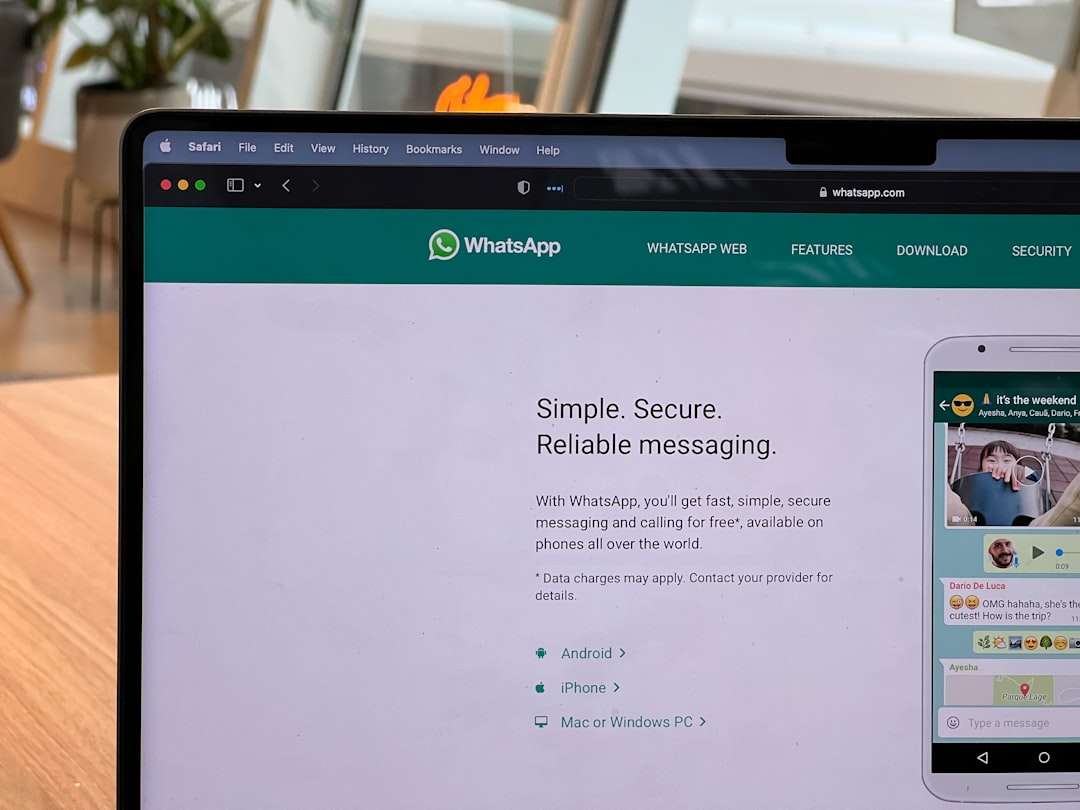
If the service must be reached from outside the local network, the router usually needs a port forwarding rule. To begin, the user opens a web browser and enters the router’s gateway address. Common gateway addresses include:
- 192.168.0.1
- 192.168.1.1
- 10.0.0.1
The router login page should appear. The administrator username and password may be printed on the router label or provided by the internet service provider. If the password was changed and forgotten, the router documentation may be needed.
Step 4: Find Port Forwarding Settings
Every router interface is different, but port forwarding settings are often found under sections such as:
- Advanced Settings
- NAT
- Port Forwarding
- Virtual Server
- Firewall
- Gaming
Once the correct section is found, the user creates a new rule. The rule usually asks for the service name, external port, internal port, protocol, and local IP address of the receiving device.
For example, a rule might look like this:
- Service name: Game Server
- External port: 25565
- Internal port: 25565
- Protocol: TCP
- Internal IP: 192.168.1.25
After saving the rule, the router may restart or apply the change immediately.
Step 5: Test Whether the Port Is Open
After configuring the firewall and router, the port should be tested. A port test only works if the service is actively running and listening on that port. If the application is closed, the port may appear closed even if the settings are correct.
Testing methods include:
- Using the application itself to connect from another device.
- Trying an external port checker to see whether the public IP and port respond.
- Using command-line tools such as telnet, nc, or curl, depending on the service.
If the port does not appear open, the user should verify the port number, protocol, device IP address, firewall rule, router rule, and whether the application is running.

Security Risks of Opening Ports
Opening a port can make a device more reachable, which is the goal. However, it can also make the device more exposed. If a service has weak passwords, outdated software, or security flaws, attackers may try to exploit it.
Beginners should follow these safety practices:
- Open only the ports that are necessary.
- Close ports when they are no longer needed.
- Use strong passwords for any remote-access service.
- Keep software updated to reduce known vulnerabilities.
- Avoid exposing sensitive services directly to the internet when possible.
- Use VPN access for private tools instead of public port forwarding when practical.
- Limit access by IP address if the router or firewall supports it.
Security should never be treated as an afterthought. A port should be opened with a clear purpose and monitored over time.
Common Problems and Fixes
If the port is still not working, several common issues may be responsible.
The Wrong Protocol Was Selected
Some services require TCP, while others require UDP. If the wrong protocol is selected, the connection may fail. When uncertain, the application documentation should be checked.
The Local IP Address Changed
If the device receives a new local IP address from the router, the forwarding rule may point to the wrong machine. A DHCP reservation can help keep the address consistent.
The Application Is Not Running
A port appears open only when a service is listening. The application or server software must be running before the test is performed.
The Internet Provider Blocks the Port
Some internet service providers block certain ports, especially common server ports. In that case, a different port or a business-grade connection may be needed.
Double NAT Is Present
Double NAT occurs when two routers are used, such as a modem-router from the provider plus a separate personal router. Port forwarding may need to be configured on both devices, or one device may need to be placed in bridge mode.
When a Port Should Not Be Opened
A port should not be opened simply because an online guide suggests it. If the user does not understand what service uses the port, the safer choice is to leave it closed. Ports used for remote administration, file sharing, databases, and cameras should be handled carefully.
For many situations, safer alternatives exist. A VPN, reverse proxy, secure tunnel, or cloud-hosted service may provide access without exposing a home device directly to the public internet.
FAQ
What does it mean to open a port?
Opening a port means allowing network traffic through a firewall or router for a specific port number and protocol. It lets a service receive connections that would otherwise be blocked.
Is opening a port dangerous?
It can increase risk if the exposed service is insecure, outdated, or protected by weak passwords. However, opening a necessary port can be safe when proper security practices are followed.
Does a port need to be opened on both the router and computer?
Often, yes. If traffic comes from the internet, the router may need port forwarding, and the computer firewall may need to allow the traffic.
What is the difference between TCP and UDP?
TCP is connection-based and focuses on reliable delivery. UDP is faster and lighter but does not guarantee delivery in the same way. The correct choice depends on the application.
How can someone know which port to open?
The required port is usually listed in the application’s setup guide, server documentation, or support instructions. Guessing is not recommended.
Why does an open port still show as closed?
The service may not be running, the wrong protocol may be selected, the firewall may still be blocking it, or the router rule may point to the wrong local IP address.
Should unused ports be closed?
Yes. Unused ports should be closed to reduce exposure and limit possible entry points for attackers.
Can a beginner open a port without advanced networking knowledge?
Yes. With the correct port number, protocol, device IP address, and router access, a beginner can usually open a port by carefully following step-by-step instructions.