How to Fix Chrome Glitch: Common Issues
7 min read
Google Chrome is generally stable, but it can still develop glitches that interrupt browsing, slow down work, or make websites behave unpredictably. These issues may appear as frozen tabs, blank pages, repeated crashes, missing images, video playback errors, login problems, or pages that refuse to load. In most cases, the cause is not a single serious failure but a combination of cached data, extensions, outdated software, corrupted settings, or system resource problems.
TLDR: Start by restarting Chrome and your device, then update the browser to the latest version. If the glitch continues, clear cached data, disable suspicious extensions, and test the page in Incognito mode. For more persistent issues, reset Chrome settings, check for malware, create a new browser profile, or reinstall Chrome. Always back up important bookmarks and passwords before making major changes.
1. Identify the Type of Chrome Glitch
Before making changes, take a moment to identify what kind of glitch you are dealing with. A browser that crashes on startup requires a different approach from one that loads pages slowly or displays broken website elements. Careful diagnosis helps you avoid unnecessary steps and reduces the risk of losing data.
Common Chrome glitches include:
- Chrome freezes or becomes unresponsive while opening multiple tabs.
- Pages fail to load and display errors such as Aw, Snap!, ERR_CONNECTION_TIMED_OUT, or DNS_PROBE_FINISHED.
- Videos or images do not display correctly, even when the same site works in another browser.
- Chrome opens slowly or consumes excessive memory and CPU.
- Extensions behave strangely, inject unwanted popups, or break normal page functions.
- Sync problems prevent bookmarks, passwords, or history from updating across devices.
The more specific you are about the symptom, the easier it becomes to apply the correct fix.
2. Restart Chrome and Your Device
The simplest fixes are often the most effective. Chrome can develop temporary memory conflicts, stuck processes, or background tasks that fail to close properly. Restarting clears these temporary problems without changing your settings.
- Close all Chrome windows.
- On Windows, open Task Manager and check whether any chrome.exe processes are still running. End them if needed.
- On macOS, open Activity Monitor and quit lingering Chrome processes.
- Restart your computer or mobile device.
- Open Chrome again and test the same website or activity.
If the glitch disappears after a restart, the issue was likely temporary. If it returns quickly, continue with the steps below.
3. Update Chrome
An outdated browser is a frequent cause of glitches. Chrome updates include security patches, bug fixes, compatibility improvements, and performance updates. Websites also change over time, and older browser versions may not handle newer scripts and features correctly.
To update Chrome on desktop:
- Open Chrome.
- Click the three dot menu in the upper right corner.
- Select Help, then About Google Chrome.
- Chrome will automatically check for updates.
- If an update is installed, click Relaunch.
On Android or iPhone, update Chrome through the Google Play Store or Apple App Store. After updating, revisit the page or feature that was causing trouble.
4. Clear Cache and Cookies
Cached files help websites load faster, but damaged or outdated cache data can cause pages to appear broken. Cookies can also contribute to login loops, failed sessions, or settings that do not save. Clearing this data is one of the most reliable ways to fix page specific Chrome glitches.
To clear cache and cookies:
- Open Chrome and press Ctrl + Shift + Delete on Windows or Command + Shift + Delete on Mac.
- Choose a time range, such as Last 24 hours or All time.
- Select Cookies and other site data and Cached images and files.
- Click Clear data.
Important: Clearing cookies may sign you out of websites. Make sure you know your account passwords before removing site data.
5. Test the Problem in Incognito Mode
Incognito mode is useful because it runs Chrome without most extensions and without using your normal browsing cookies. If a website works correctly in Incognito mode but not in a regular window, the issue is likely related to extensions, cached data, cookies, or profile settings.
To open Incognito mode, press Ctrl + Shift + N on Windows or Command + Shift + N on macOS. Then visit the same website and repeat the action that caused the glitch.
If the problem disappears, focus on disabling extensions and clearing site data. If the problem continues even in Incognito mode, the cause may be network related, system related, or connected to Chrome itself.
6. Disable or Remove Problem Extensions
Extensions can improve Chrome, but poorly maintained or poorly designed extensions are a common source of glitches. Ad blockers, coupon tools, download managers, privacy extensions, password helpers, and script blocking tools can interfere with website functions.
To review extensions:
- Click the three dot menu.
- Go to Extensions, then Manage Extensions.
- Turn off all extensions temporarily.
- Restart Chrome and test the problem again.
- Re enable extensions one by one until the glitch returns.
When you identify the extension causing the issue, either keep it disabled, remove it, or check whether an update is available. Be especially cautious with extensions you do not recognize. If an extension changes your search engine, injects ads, or redirects pages, remove it immediately.
7. Check Internet and DNS Issues
Not every Chrome glitch is caused by Chrome. If pages do not load, load only sometimes, or show connection related errors, the issue may involve your internet connection, router, DNS settings, VPN, firewall, or security software.
Try these checks:
- Open the same website in another browser.
- Restart your router and modem.
- Temporarily disconnect from VPN or proxy services.
- Try another network, such as mobile hotspot, if available.
- Check whether other devices on the same network have the same problem.
If only Chrome has the problem, continue troubleshooting the browser. If all browsers or devices are affected, the problem is more likely related to the network or the website itself.
8. Reset Chrome Settings
If Chrome continues to behave strangely, resetting settings can help. This restores startup pages, new tab behavior, search engine settings, pinned tabs, content settings, cookies, and extensions to a more standard configuration. It does not delete bookmarks, history, or saved passwords, but you should still review your sync status before proceeding.
To reset Chrome:
- Open Settings.
- Select Reset settings.
- Click Restore settings to their original defaults.
- Confirm by selecting Reset settings.
This step is particularly useful when Chrome has been altered by unwanted software, aggressive extensions, or configuration changes that are difficult to track manually.
9. Create a New Chrome Profile
Chrome profiles store bookmarks, extensions, history, preferences, and sync data. If your profile becomes corrupted, Chrome may crash, freeze, fail to sync, or show unusual behavior even after clearing data. Creating a new profile is a safe way to test whether your existing profile is the cause.
To create a new profile:
- Click the profile icon in the top right corner.
- Select Add or Set up new profile.
- Choose whether to sign in with a Google account.
- Test Chrome using the new profile before installing extensions.
If the problem does not occur in the new profile, your old profile may contain damaged settings or a problematic extension. You can gradually move bookmarks and settings over, rather than importing everything at once.
10. Check for Malware or Unwanted Software
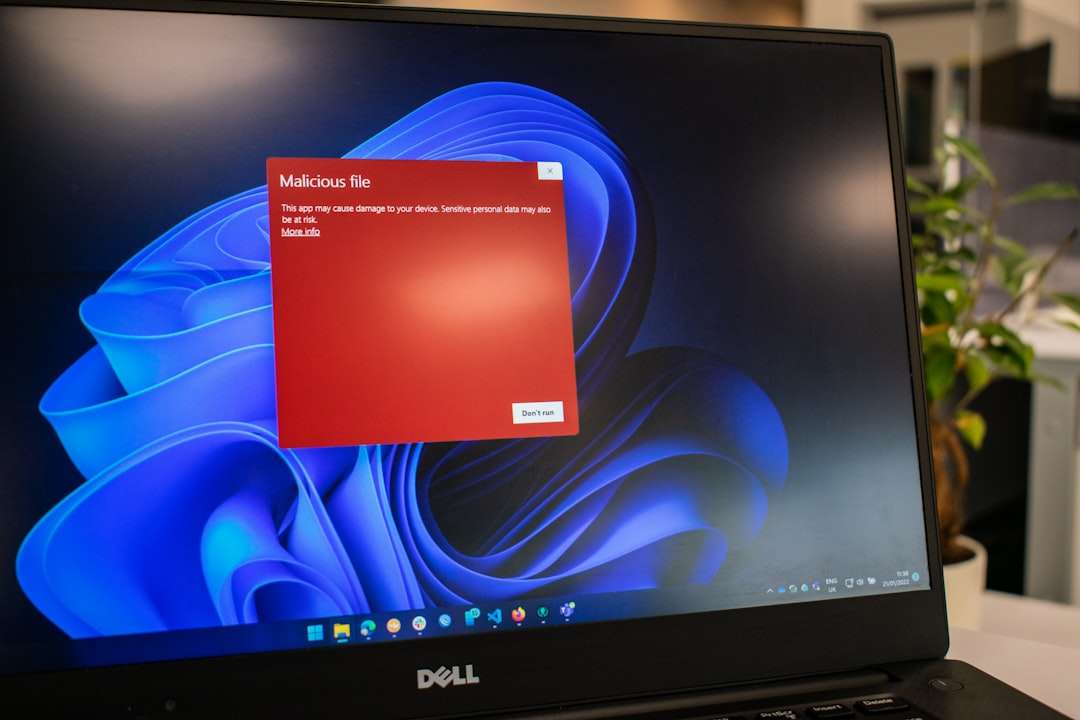
Unwanted software can cause serious Chrome glitches, including redirects, popups, fake warnings, changed search engines, and unexplained slowdowns. These symptoms should be treated carefully because they may indicate a security risk rather than an ordinary browser error.
Use a reputable antivirus or anti malware tool to scan your system. On Windows, you can also run Windows Security and perform a full scan. Remove anything suspicious, restart your computer, and then review Chrome extensions and search settings.
Signs of possible malware include:
- Searches redirecting to unfamiliar websites.
- New toolbars or extensions appearing without permission.
- Frequent popups even on trusted sites.
- Chrome opening tabs by itself.
- Security warnings from your operating system or antivirus software.
11. Reduce Memory and CPU Pressure
Chrome can become sluggish or unstable when the system is low on memory. This is especially common when many tabs are open, several extensions are active, or heavy websites such as video editors, dashboards, games, and streaming platforms are running at the same time.
Open Chrome’s built in task manager by pressing Shift + Esc on Windows or using Window then Task Manager on some desktop versions. This shows which tabs and extensions are using the most memory or CPU. End tasks that are frozen or consuming excessive resources.
You can also improve performance by:
- Closing tabs you are not using.
- Removing unnecessary extensions.
- Enabling Chrome’s memory saving features in settings.
- Restarting Chrome regularly if you keep it open for days.
- Updating your operating system and graphics drivers.
12. Reinstall Chrome as a Last Resort
If none of the above steps work, a clean reinstall may be necessary. This can fix damaged program files or deep configuration problems. Before uninstalling Chrome, make sure your bookmarks, passwords, and important settings are backed up or synced to your Google account.
After uninstalling Chrome, restart your device. Then download Chrome again from Google’s official website or your device’s official app store. Avoid third party download sites, because they may bundle unwanted software or outdated installers.
When to Seek Further Help
If Chrome still crashes after reinstalling, the issue may involve your operating system, hardware, memory, graphics driver, security software, or enterprise administrator settings. In that case, document the exact error messages, when the glitch started, what you have already tried, and whether it happens in other browsers. This information will make technical support far more effective.
Chrome glitches are frustrating, but most are fixable with a structured process. Start with basic steps, move toward extensions and cached data, then investigate profiles, malware, and system performance. By working carefully and avoiding random changes, you can restore Chrome to stable, reliable operation while protecting your data and security.