How to Change Your Monitor Framerate on Windows PC
5 min read
Your monitor’s refresh rate, also called framerate, controls how many times per second the screen updates. A higher number means smoother motion. This matters for gaming, watching videos, and even moving your mouse. The good news? Changing it on a Windows PC is easy.
TLDR: You can change your monitor’s refresh rate in Windows Settings under Advanced display settings. Choose the highest refresh rate your monitor supports for smoother motion. Make sure your cable and graphics card support the setting. If you don’t see higher options, update your drivers or check your monitor specs.
What Is Refresh Rate?
The refresh rate tells you how many times your screen redraws the image every second. It’s measured in Hertz (Hz).
- 60Hz = 60 updates per second
- 120Hz = 120 updates per second
- 144Hz = 144 updates per second
- 240Hz = 240 updates per second
The higher the number, the smoother things look. This is especially noticeable in fast-paced games and action videos.
If you have ever seen gameplay that looks ultra-smooth, chances are it was running at 120Hz or higher.
Why Change Your Monitor Framerate?
There are several reasons you might want to adjust your refresh rate.
- Smoother gaming
- Less screen tearing
- More responsive mouse movement
- Better overall experience
Sometimes Windows defaults to 60Hz, even if your monitor supports more. That means you might not be getting the performance you paid for.
Before You Start
Check three important things first:
- Your monitor supports higher refresh rates
- Your graphics card supports the refresh rate
- You are using the correct cable
For example:
- Older HDMI cables may limit refresh rate.
- DisplayPort usually supports higher refresh rates.
- HDMI 2.0 or 2.1 supports higher resolutions and refresh rates.
If you are unsure, check the monitor’s manual or look up its model number online.
How to Change Refresh Rate in Windows 11
Let’s walk through the steps. It only takes a minute.
- Right-click on your desktop.
- Click Display settings.
- Scroll down and click Advanced display.
- Find the Choose a refresh rate dropdown menu.
- Select the highest refresh rate available.
The screen may flicker for a second. That’s normal.
If everything looks good, you’re done.
How to Change Refresh Rate in Windows 10
The steps are very similar.
- Right-click on the desktop.
- Select Display settings.
- Scroll down and click Advanced display settings.
- Click Display adapter properties.
- Go to the Monitor tab.
- Select your desired refresh rate from the list.
- Click Apply.
Your screen may blink briefly. That’s just Windows applying the new setting.
How to Check Your Current Refresh Rate
Not sure what you are using right now?
Go to:
- Settings
- System
- Display
- Advanced display
You will see your current refresh rate listed there.
It will look something like “60Hz” or “144Hz.”
What If You Don’t See Higher Options?
If you expected 144Hz but only see 60Hz, don’t panic. Here are common reasons and fixes.
1. Wrong Cable
This is very common.
Switch to:
- DisplayPort cable
- HDMI 2.0 or higher
Older HDMI cables may limit you to 60Hz.
2. Graphics Drivers Are Outdated
Outdated drivers can hide refresh rate options.
To update:
- Press Windows + X
- Click Device Manager
- Expand Display adapters
- Right-click your GPU
- Select Update driver
Or download the latest drivers directly from NVIDIA, AMD, or Intel.
3. Monitor Settings
Some monitors require you to enable higher refresh rates in their internal menu.
Use the buttons on the monitor to check settings like:
- Overclock mode
- High refresh mode
- Gaming mode
Enable them if available.
4. Resolution Is Too High
Higher resolutions can reduce available refresh rates.
For example:
- 4K may limit you to 60Hz
- 1080p may allow 144Hz or higher
Try lowering the resolution slightly and check again.
How Refresh Rate Affects Gaming
Gamers care a lot about refresh rate. And for good reason.
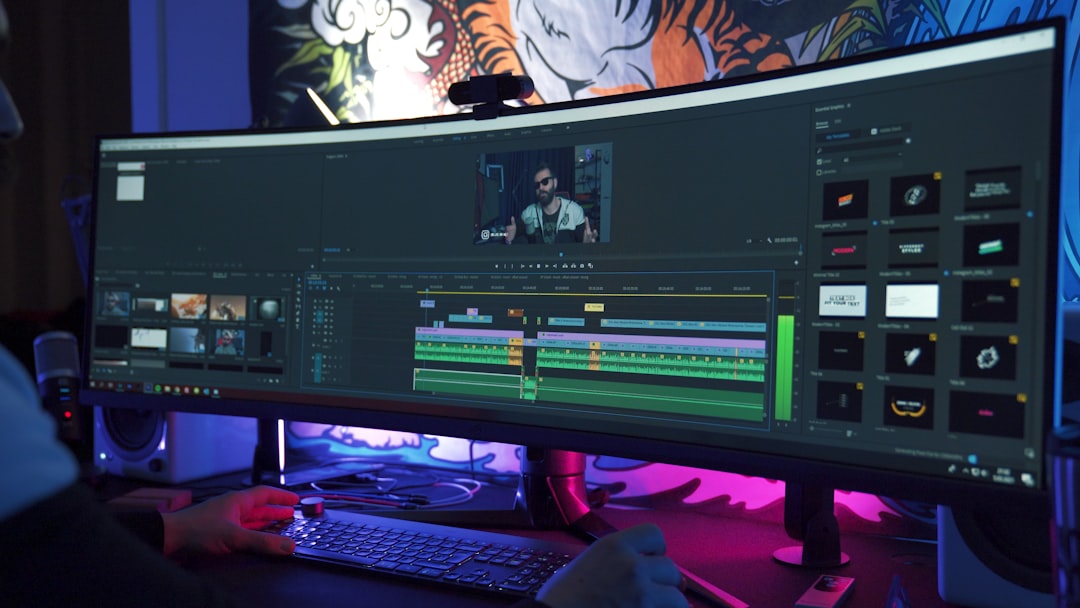
Higher refresh rate means:
- Smoother movement
- Less motion blur
- Better reaction time
If your PC can push high frame rates, pairing it with a 144Hz or 240Hz monitor makes a big difference.
But remember this important fact:
Your game’s FPS (frames per second) should match or exceed your monitor’s refresh rate.
If your monitor is 144Hz but your game runs at 45 FPS, you won’t see the full benefit.
Does Higher Refresh Rate Affect Everyday Use?
Yes. Even outside gaming.
You may notice:
- Smoother scrolling in browsers
- Cleaner animations
- More responsive cursor movement
Once you use 144Hz for a while, 60Hz can feel slow. Many people say it feels like the screen is “lagging,” even when it is not.
Can Changing Refresh Rate Damage Your Monitor?
If you pick a refresh rate listed in Windows, it is safe.
Windows only shows supported options by default.
Problems usually happen only when people try manual overclocking through special tools. If you are simply choosing from the dropdown menu in Windows, you are fine.
What About Multiple Monitors?
Using more than one monitor?
You can set different refresh rates for each monitor.
In Advanced display settings, select the monitor at the top of the screen. Then change its refresh rate individually.
Each display is controlled separately.
Variable Refresh Rate (G-Sync and FreeSync)
Some monitors support:
- NVIDIA G-Sync
- AMD FreeSync
These technologies adjust refresh rate dynamically to match game FPS.
This reduces:
- Screen tearing
- Stuttering
- Input lag
To use them, you often must enable them in:
- Your monitor settings
- Your GPU control panel
Look for the NVIDIA Control Panel or AMD Software settings.
Troubleshooting Quick Checklist
Still not working? Use this quick checklist:
- Restart your PC
- Try a different cable
- Update GPU drivers
- Check monitor menu settings
- Lower resolution
- Test another port on your graphics card
Most refresh rate issues are solved by fixing the cable or updating drivers.
Final Thoughts
Changing your monitor’s refresh rate is simple. But it can make a huge difference.
It takes less than two minutes. Yet the improvement can be dramatic.
If your monitor supports 120Hz, 144Hz, or higher, make sure Windows is actually using it. Otherwise, you are leaving smoothness on the table.
Open your display settings now. Check your refresh rate. You might be surprised.
And once you switch to a higher refresh rate, don’t be shocked if you never want to go back.