Victrix Control Hub Not Connecting? Fix It
5 min read
When the Victrix Control Hub refuses to connect, it can be frustrating—especially for gamers who rely on precise controller customization and firmware updates. Connectivity issues can stem from simple software glitches, outdated drivers, faulty cables, or system-level conflicts. Fortunately, most problems can be resolved with a systematic troubleshooting approach. This guide explores the common causes and step-by-step solutions to restore the connection quickly and effectively.
TLDR: If Victrix Control Hub is not connecting, start by checking your USB cable and port, then ensure drivers and firmware are updated. Restart both your PC and controller, reinstall the software if necessary, and verify compatibility with your operating system. Most issues are caused by outdated drivers, faulty cables, or permission conflicts. Following a structured troubleshooting process resolves the majority of connection failures.
Common Reasons Victrix Control Hub Won’t Connect
Understanding the root of the issue is the first step toward fixing it. Several factors can prevent the Victrix Control Hub from detecting a controller:
- Faulty USB cable or port
- Outdated firmware
- Corrupted software installation
- Operating system compatibility issues
- Driver conflicts
- Insufficient permissions
In many cases, the cause is something simple—such as using a charging-only USB cable instead of one that supports data transfer.
Quick Fix Checklist Before Deep Troubleshooting
Before diving into advanced steps, it helps to perform a few quick checks:
- Try a different USB port on the PC.
- Switch to a high-quality data USB cable.
- Restart the computer.
- Disconnect and reconnect the controller.
- Close and reopen Victrix Control Hub.
These simple actions often resolve minor recognition errors.
Fix 1: Check USB Cable and Port Integrity
Many connection issues occur because of damaged or incompatible cables. A cable might charge the device but fail to transfer data. Users should:
- Inspect the cable for frays or bends.
- Test the controller using another cable.
- Avoid USB hubs and connect directly to the motherboard port.
- Try both USB 2.0 and USB 3.0 ports.
If the controller lights up but does not appear in the software, the cable is often the culprit.
Fix 2: Update or Reinstall Victrix Control Hub
Software corruption is another common reason. An incomplete installation or outdated version can block communication between the controller and PC.
Steps to reinstall:
- Uninstall Victrix Control Hub from the system settings.
- Restart the computer.
- Download the latest version from the official source.
- Install it and launch as Administrator.
Running as administrator ensures the software has sufficient system access to detect connected hardware.
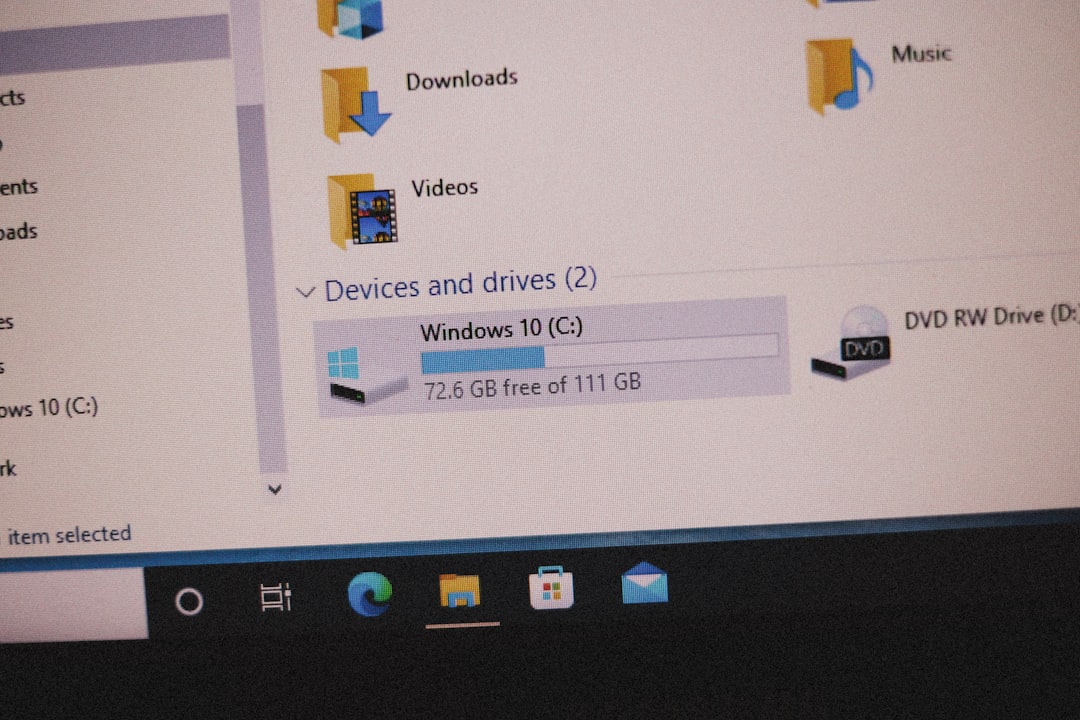
Fix 3: Update Device Drivers
Outdated USB or controller drivers can prevent proper communication. Windows may not automatically update them.
To update drivers:
- Open Device Manager.
- Locate the controller under Human Interface Devices.
- Right-click and choose Update driver.
- Select automatic search for updated drivers.
If the issue persists, uninstall the device from Device Manager and reconnect it to force a fresh driver installation.
Fix 4: Check Firmware Version
Outdated firmware may prevent compatibility with the latest Control Hub version. If the software partially detects the device but fails to configure it, firmware mismatch is likely.
Users should:
- Open Victrix Control Hub (if accessible).
- Navigate to firmware settings.
- Install any available updates.
It is important not to disconnect the controller during firmware updates, as this can corrupt the device.
Fix 5: Resolve Operating System Compatibility Issues
Some users experience issues after upgrading Windows or running older operating systems. Victrix Control Hub is designed primarily for recent versions of Windows.
What to check:
- Is the operating system fully updated?
- Are optional USB updates installed?
- Is compatibility mode enabled unintentionally?
If necessary, right-click the program file and disable compatibility mode to ensure full functionality.
Fix 6: Disable Conflicting Software
Other controller customization programs can interfere with Victrix Control Hub. Examples include general gamepad mapping tools or RGB control software.
To test for conflicts:
- Close third-party controller software.
- Disable background hardware tools temporarily.
- Perform a clean boot of Windows.
A clean boot starts Windows with minimal drivers and startup programs, helping isolate the problematic software.
Fix 7: Perform a Controller Reset
Some Victrix controllers have a small reset button or combination press reset method. Performing a hardware reset can restore factory defaults and clear communication faults.
Typical reset method:
- Power off the controller.
- Press and hold the reset button (if available).
- Reconnect to the PC while holding the reset.
After resetting, reopen the Control Hub to check detection.
Advanced Troubleshooting Steps
If basic fixes fail, deeper system inspection may be required.
Check USB Power Management Settings
Windows sometimes disables USB devices to save power.
- Open Device Manager.
- Expand Universal Serial Bus controllers.
- Right-click each USB Root Hub.
- Select Properties > Power Management.
- Uncheck “Allow the computer to turn off this device to save power.”
This prevents Windows from suspending the connection mid-operation.
Scan for System File Corruption
Corrupted system files may prevent hardware recognition.
Users can run the following command in Command Prompt as admin:
sfc /scannow
This scans and repairs damaged Windows system files automatically.
Troubleshooting Comparison Chart
| Issue | Difficulty Level | Estimated Time | Success Rate |
|---|---|---|---|
| Replace USB Cable | Easy | 5 Minutes | High |
| Reinstall Control Hub | Easy | 10 Minutes | High |
| Update Drivers | Moderate | 10–15 Minutes | High |
| Firmware Update | Moderate | 5–10 Minutes | Medium to High |
| Clean Boot Test | Advanced | 20–30 Minutes | Variable |
| System File Scan | Advanced | 15–25 Minutes | Variable |
When to Contact Support
If none of the troubleshooting methods work, the issue may be hardware-related. Signs of possible hardware failure include:
- The controller does not power on at all.
- It is not recognized on multiple computers.
- Firmware updates consistently fail.
- The USB port on the controller feels loose or unstable.
In these cases, contacting Victrix support or requesting a warranty replacement may be necessary.

Preventing Future Connection Problems
Prevention helps minimize recurring connectivity issues. Users should:
- Keep firmware regularly updated.
- Use high-quality USB cables only.
- Avoid excessive bending of wires.
- Maintain updated Windows drivers.
- Close unnecessary background software while gaming.
Routine maintenance ensures smoother performance and stable customization access.
Frequently Asked Questions (FAQ)
Why is my Victrix Control Hub not detecting my controller?
The most common causes are faulty USB cables, outdated drivers, or corrupted software installations. Trying a different cable or reinstalling the program resolves the issue in most cases.
Does Victrix Control Hub work on Mac?
Victrix Control Hub is generally designed for Windows systems. Users should verify compatibility on the official specifications page, as Mac support may be limited or unavailable.
Can a charging cable cause connection issues?
Yes. Some USB cables only transmit power and do not support data transfer, preventing the Control Hub from detecting the controller.
How do I know if my firmware is outdated?
If the Control Hub prompts for an update or fails to apply controller settings properly, there may be a firmware mismatch.
Is it safe to reinstall the Control Hub?
Yes. Reinstalling the software does not harm the controller. It often resolves corrupted configuration files or broken updates.
What should I do if nothing works?
If all troubleshooting methods fail, testing the controller on another PC can help determine whether the issue is device-related. If it still does not connect, professional support or warranty service may be required.
By following these structured troubleshooting steps, most Victrix Control Hub connection problems can be resolved without advanced technical expertise. Careful diagnosis, updated software, and proper cable management ensure consistent performance and a smooth gaming experience.