How To Add mGBA To Nintendo Switch Home Screen In 2026: Easy Homebrew Guide
4 min read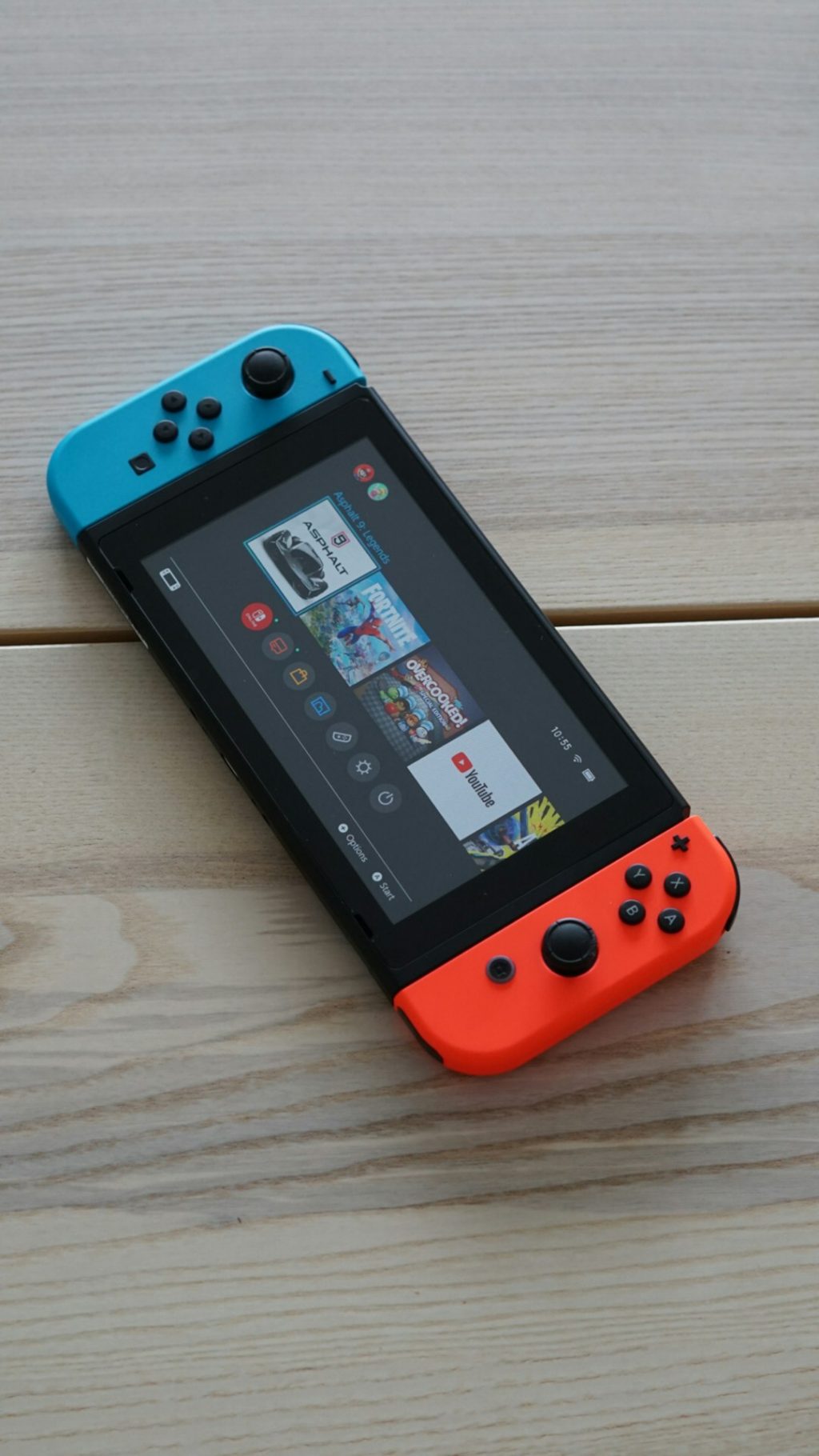
The Nintendo Switch remains one of the most versatile handheld consoles in 2026, and thanks to the maturity of the homebrew scene, it is easier than ever to customize your system. One of the most popular additions is mGBA, a powerful Game Boy Advance emulator known for accuracy and performance. While installing mGBA itself is straightforward, many users want to go one step further and add it directly to the Nintendo Switch Home Screen for seamless access.
TLDR: To add mGBA to your Nintendo Switch Home Screen in 2026, you need a modded Switch running custom firmware, install mGBA via the Homebrew Menu, and create a forwarder NSP to generate a Home Menu icon. Tools like Atmosphere, Hekate, and a forwarder generator are essential. Once installed correctly, mGBA will behave like a native app on your Switch dashboard.
This guide provides a clear, serious, and practical walkthrough of how to do it safely and correctly.
Important Disclaimer
Before proceeding, you should understand the following:
- Modifying your Nintendo Switch voids your warranty.
- There is always a ban risk if you connect a modified console to Nintendo’s online services.
- You are responsible for complying with local laws concerning backups and emulation.
This guide assumes you already have a hackable Nintendo Switch (unpatched or modchipped) and are running custom firmware such as Atmosphere.
What You Need in 2026
Adding mGBA to the Switch Home Screen requires a combination of homebrew applications and custom firmware components.
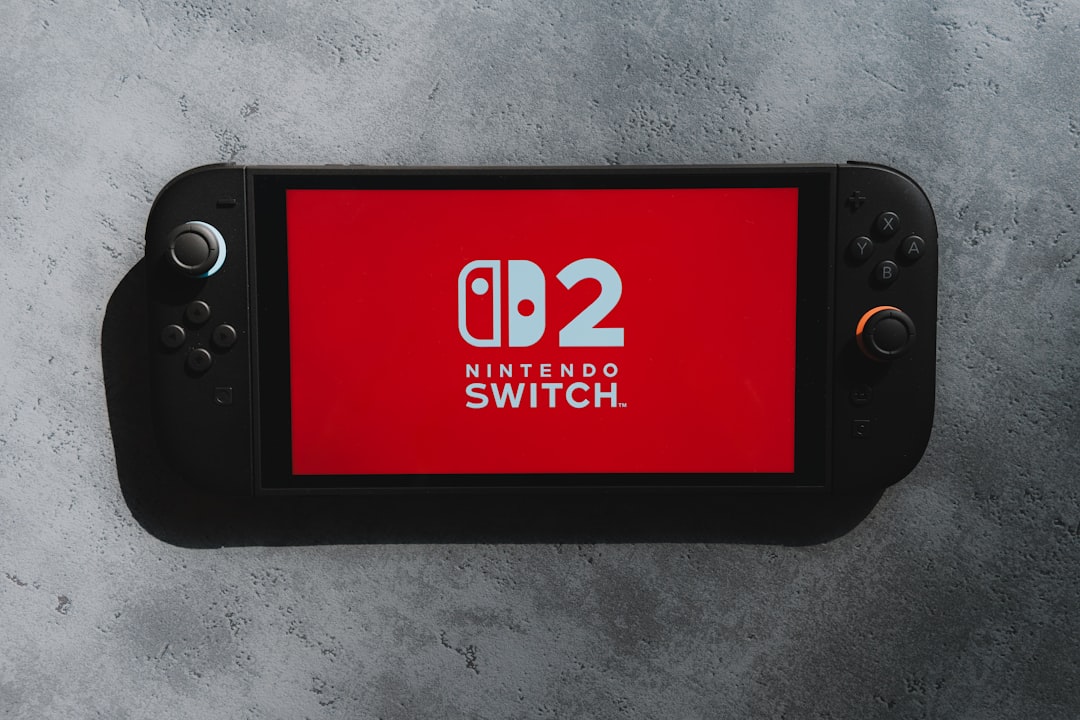
Core Requirements
- Custom Firmware (CFW) – Atmosphere (latest version)
- Bootloader – Hekate (recommended)
- mGBA Switch version – .nro file
- Forwarder generator tool
- Title installer – DBI, Goldleaf, or TinWoo Installer
- MicroSD card (FAT32 recommended)
Recommended Tools Comparison (2026)
Below is a comparison of commonly used tools to help you choose the right setup:
| Tool | Purpose | Recommended? | Notes |
|---|---|---|---|
| Atmosphere | Custom firmware | Yes (Essential) | Most stable and widely supported CFW |
| Hekate | Bootloader and payload launcher | Yes | Best for NAND backups and payload management |
| DBI Installer | Install NSP forwarders | Highly Recommended | Fast, clean, actively maintained |
| Goldleaf | NSP installation | Optional | Older but still usable |
| Switch Forwarder Generator | Create Home Menu icon | Essential | Creates NSP that points to mGBA.nro |
Step 1: Install or Update mGBA
First, ensure you have the latest Switch-compatible version of mGBA.
- Download the mGBA .nro file.
- Insert your microSD card into your computer.
- Navigate to SD:/switch/
- Create a folder named mGBA (if it does not exist).
- Place the mGBA.nro file inside.
Your structure should look like this:
SD:/switch/mGBA/mGBA.nro
Insert the SD card back into your Switch and confirm that mGBA runs correctly through the Homebrew Menu before proceeding.
Step 2: Create a Home Screen Forwarder
This is the key step. The Switch Home Menu only recognizes installed titles (NSP format). Since mGBA is an .nro homebrew app, you must create a forwarder NSP.
A forwarder is a small launcher that directs the system to open:
SD:/switch/mGBA/mGBA.nro
How to Create the Forwarder
- Open your Forwarder Generator tool on your PC.
- Select the path: /switch/mGBA/mGBA.nro
- Add an icon (PNG file, 256×256 preferred).
- Name the title “mGBA”.
- Generate the NSP file.
The tool will output a small mGBA_forwarder.nsp file.
Step 3: Install the NSP Forwarder
Once the NSP file is generated, you must install it onto your Switch.
Using DBI (Recommended)
- Place the NSP file anywhere on your SD card.
- Launch your Switch into Atmosphere.
- Open the Homebrew Menu.
- Launch DBI Installer.
- Select “Install NSP”.
- Choose the forwarder file.
After installation completes, exit to the Home Menu.
You should now see mGBA with its own icon just like a normal game.
Step 4: Verify It Works Properly
Select the newly created mGBA icon from the Home Screen.
If everything is configured correctly:
- Atmosphere will initialize.
- The forwarder will redirect to the .nro.
- mGBA will launch immediately.
If you receive an error:
- Double-check the file path.
- Confirm the SD card is formatted as FAT32.
- Ensure mGBA.nro has not been renamed or moved.
Optional: Customizing the Home Screen Icon
A professional-looking icon improves organization and usability.
Best practices for 2026:
- Resolution: 256×256 PNG
- Clean background
- Clear “mGBA” text label
- Avoid copyrighted artwork if sharing forwarders
You can regenerate the NSP at any time if you want a new icon design. Simply uninstall the old forwarder first to avoid duplicate listings.
Common Problems and Solutions
Black Screen After Launch
- Outdated Atmosphere version
- Incorrect path in forwarder
- Missing sigpatches
“Unable to Start Software” Error
- Forwarder was corrupted during transfer
- SD removed without safe eject
- mGBA.nro missing
Icon Appears but Crashes Immediately
- Wrong Title ID generated
- Forwarder pointing to wrong directory
When troubleshooting, always verify your SD directory structure first. Most forwarder issues stem from incorrect file placement.
Safety Tips for 2026
The Switch ecosystem continues to evolve. Follow these safety guidelines:
- Keep Atmosphere updated.
- Maintain NAND backups via Hekate.
- Use emuNAND if you want to reduce ban risk.
- Avoid going online with homebrew installed.
Professional modders typically maintain two environments:
- Clean SysNAND – For legitimate online gameplay
- EmuNAND (Offline) – For homebrew and emulation
Why Use a Home Screen Forwarder?
You may wonder why this process is necessary.
Benefits include:
- Faster access without launching Album
- Cleaner system organization
- Native app appearance
- Improved multi user usability
In 2026, forwarders are stable and widely accepted within the homebrew community. When installed correctly, they behave consistently across firmware updates.
Final Thoughts
Adding mGBA to your Nintendo Switch Home Screen in 2026 is no longer complicated, but it does require precision. The key steps involve:
- Installing mGBA correctly
- Generating a properly configured forwarder
- Installing the NSP safely with a trusted title manager
When done properly, mGBA integrates into your system as if it were a native application. The result is a smooth, professional-looking setup that enhances both convenience and usability.
As always, proceed carefully, keep backups, and stay informed about updates within the homebrew community. With the right preparation, your Nintendo Switch can serve as an exceptional handheld GBA system with instant Home Screen access.