Why Can’t I Install Dropbox? Here’s the Fix
5 min read
Many users rely on Dropbox for file synchronization, backups, and team collaboration, so it can be incredibly frustrating when the app refuses to install. Whether the issue appears as an error message, a frozen setup screen, or a silent failure, installation problems are usually fixable with the right steps. The good news is that most causes are common and relatively easy to resolve.
TLDR: If Dropbox won’t install, the problem is typically related to system incompatibility, insufficient storage, permissions issues, antivirus interference, or corrupted installer files. Checking system requirements, freeing up disk space, running the installer as an administrator, and disabling conflicting software usually resolves the issue. Updating your operating system can also help. In stubborn cases, manual installation or cleanup tools may be required.
This guide explains why Dropbox may not be installing and walks through practical solutions to get it working.
Common Reasons Why Dropbox Won’t Install
Before applying fixes, it helps to understand what may be going wrong. Several technical factors can prevent installation.
1. System Requirements Are Not Met
Dropbox regularly updates its desktop app, and older systems may no longer be supported. If the operating system is outdated, incompatible, or running on unsupported hardware, installation may fail.
- Outdated Windows or macOS versions
- Insufficient RAM
- Unsupported processor architecture
Fix: Verify system compatibility on the official Dropbox website. Update the OS if necessary.
2. Not Enough Storage Space
Although Dropbox itself is not a very large application, it requires sufficient disk space to install and operate. If the hard drive is nearly full, the installer may fail without a clear explanation.
Fix:
- Delete temporary files
- Empty the recycle bin
- Uninstall unused applications
Ensure at least several gigabytes of free space are available before reinstalling.
3. Corrupted Installation File
Sometimes the installer itself is the problem. If the file was partially downloaded or corrupted during transfer, it will not execute correctly.
Fix:
- Delete the existing installer
- Download a fresh copy from the official Dropbox website
- Avoid third-party download sites
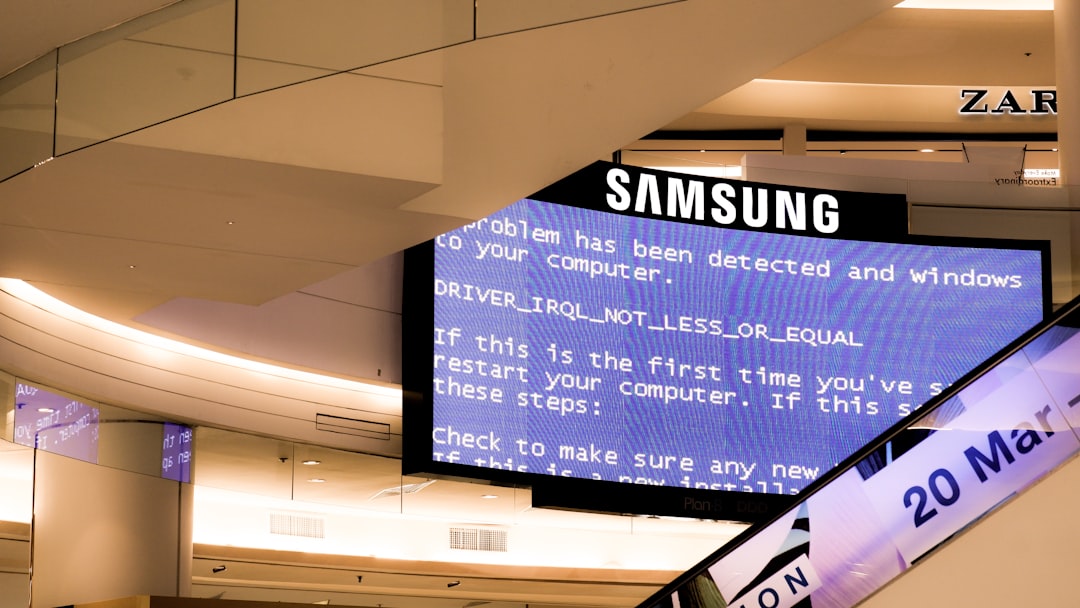
4. Administrator Permission Issues
Installing software usually requires administrative privileges. If the current account lacks permissions, the installation may stall or display access errors.
Fix:
- Right-click the installer file
- Select Run as Administrator (Windows)
- On Mac, ensure the user account has admin rights in System Settings
5. Antivirus or Firewall Interference
Security software may mistakenly block Dropbox from installing, especially if it interprets the installation behavior as suspicious.
Fix:
- Temporarily disable antivirus protection
- Pause firewall restrictions
- Add Dropbox as an exception after installation
Remember to re-enable security tools after completing the installation.
6. Previous Dropbox Remnants
If Dropbox was previously installed and not properly removed, leftover files can interfere with a fresh installation.
Fix:
- Uninstall Dropbox completely
- Manually delete remaining folders in Program Files (Windows) or Applications (Mac)
- Restart the computer before reinstalling

Step-by-Step Troubleshooting Guide
If the cause is unclear, following this structured troubleshooting process can help.
Step 1: Restart the Computer
This simple step can resolve background conflicts, pending updates, and locked files that prevent installation.
Step 2: Update the Operating System
An outdated system often causes compatibility issues. Install all pending updates and restart again.
Step 3: Check Internet Connection
Dropbox requires a stable internet connection to complete installation. Slow or unstable connections may interrupt the setup process.
Test by:
- Opening a website
- Running a speed test
- Switching networks if possible
Step 4: Clean Temporary Files
Temporary files can cause file conflicts.
On Windows:
- Press Windows + R
- Type %temp%
- Delete the temporary files
On Mac:
- Open Finder
- Select Go > Go to Folder
- Type /private/var/folders
Step 5: Use Offline Installer
Dropbox provides an offline installer option. This version does not rely heavily on real-time downloads during installation, making it useful for unstable connections.
Advanced Fixes
If the problem persists, more advanced steps may be required.
Check Disk Health
A failing hard drive can prevent applications from installing properly.
Windows: Use CHKDSK
Mac: Use Disk Utility
Disable Background Apps
Some background programs conflict with new installations, especially file synchronization tools or enterprise security software.
Create a New User Account
If profile corruption is the cause, creating a new system user and attempting installation from that account can solve the issue.
Installing Dropbox on Different Devices
Windows
Ensure:
- Windows 10 or later (if required by Dropbox version)
- .NET framework updates are installed
- Administrator permissions are enabled
Mac
Ensure:
- macOS is supported
- Security settings allow apps downloaded from the internet
- Gatekeeper settings are not blocking installation
Mobile Devices
If Dropbox will not install on Android or iOS:
- Check storage space
- Update the operating system
- Clear the app store cache
- Restart the device
When to Contact Dropbox Support
If none of the steps above resolve the issue, it may be time to contact Dropbox Support. Provide them with:
- Operating system version
- Error messages (if any)
- Screenshots
- Description of troubleshooting steps already taken
Clear, detailed information speeds up the resolution process significantly.
Preventing Future Installation Problems
Prevention is often easier than troubleshooting. Users can reduce installation failures by:
- Keeping the operating system regularly updated
- Maintaining adequate disk space
- Downloading software only from official sources
- Performing regular disk cleanups
Keeping the system optimized ensures smoother installations not just for Dropbox, but for any software.
Conclusion
Dropbox installation problems can feel technical and intimidating, but most are rooted in simple, fixable issues. Whether it is a permissions conflict, outdated operating system, antivirus interference, or limited storage space, careful troubleshooting usually resolves the problem. By identifying the likely cause and applying the proper fix, users can restore access to their files and resume productivity quickly.
Frequently Asked Questions (FAQ)
- Why does Dropbox installation freeze halfway?
This typically happens due to antivirus interference, unstable internet connections, or corrupted installer files. Restarting the system and using a fresh download often fixes it. - Can antivirus software block Dropbox installation?
Yes. Some antivirus programs mistakenly flag installers as suspicious. Temporarily disabling the antivirus can help complete the installation. - How much space does Dropbox need to install?
While the application itself is relatively small, several gigabytes of free disk space is recommended for installation and syncing. - Why does the installer say I don’t have permission?
This indicates the account lacks administrator privileges. Running the installer as an administrator usually resolves the issue. - Can I install Dropbox on an older version of Windows or macOS?
It depends on Dropbox’s current system requirements. Very old versions of operating systems may no longer be supported. - What should I do if nothing works?
Contact Dropbox Support with detailed error information and screenshots. They can provide device-specific troubleshooting guidance.