4 System Cleanup Utilities For Optimizing Performance
5 min read
Over time, even the most powerful computer can begin to feel sluggish. Programs take longer to launch, files seem harder to locate, and startup times stretch from seconds into minutes. Much of this slowdown is not due to aging hardware, but rather the accumulation of digital clutter: temporary files, invalid registry entries, leftover system logs, and background processes quietly consuming resources. Fortunately, system cleanup utilities are designed to address exactly these issues and restore speed, efficiency, and stability.
TLDR: System cleanup utilities help remove junk files, fix registry errors, manage startup programs, and optimize disk performance. The right tool can significantly improve your computer’s responsiveness without requiring hardware upgrades. This article explores four effective system cleanup utilities, highlighting their features, strengths, and ideal use cases. Regular optimization can extend the life of your machine and enhance day-to-day productivity.
Below, we explore four powerful system cleanup utilities that can optimize performance and keep your computer running smoothly.
1. CCleaner – Comprehensive and User-Friendly Cleanup
CCleaner has long been one of the most recognizable names in system optimization. Its appeal lies in its simplicity: a clean interface, straightforward scanning options, and fast results. While it has evolved over time, it remains a strong starting point for users who want a dependable all-in-one cleanup tool.

Key Features:
- Junk file removal – Deletes temporary files, browser caches, and system logs.
- Registry cleaner – Identifies and repairs invalid or outdated registry entries.
- Startup manager – Allows you to disable unnecessary programs at boot.
- Browser privacy cleaning – Clears tracking cookies and browsing history.
Why it helps: Over time, browsers and applications generate temporary data that lingers long after it is needed. These files consume disk space and can cause fragmentation. By removing them, CCleaner reduces system clutter and improves load times.
Another advantage of CCleaner is its user-centric design. Even non-technical users can run a scan safely with minimal risk. The tool typically shows exactly what will be removed before proceeding, which adds a layer of transparency and control.
Best for: Home users and small office users who want an easy-to-use maintenance tool with a broad feature set.
2. BleachBit – Lightweight and Open Source Efficiency
If you prefer open-source software with strong privacy credentials, BleachBit is an excellent alternative. This lightweight utility focuses primarily on freeing disk space and protecting user privacy.
Unlike some commercial tools that include numerous additional features, BleachBit keeps things streamlined and efficient. It supports a wide range of applications, clearing out unnecessary files generated by both operating systems and third-party programs.
Core Capabilities:
- Deep cleaning of system caches and temporary files
- Secure file shredding to prevent data recovery
- Application-specific cleaning rules
- Cross-platform compatibility
Performance impact: Removing unused data not only frees valuable storage space but also improves system indexing speed and disk efficiency. Systems with limited SSD or HDD capacity benefit greatly from routine cleanup.
BleachBit also stands out for its transparency. Because it is open source, its code is publicly accessible, providing extra reassurance for privacy-conscious users.
Best for: Users seeking a no-frills, privacy-forward cleaning solution with minimal system overhead.
3. Advanced System Optimizer – All-in-One Performance Suite
Some users want more than simple file cleanup. They want registry optimization, driver updates, disk defragmentation, and enhanced security in a single toolkit. Advanced System Optimizer falls into this category, offering a broader scope of maintenance tools.
Notable Features:
- Registry optimization to fix broken paths and invalid entries
- Disk defragmentation for traditional hard drives
- Driver updating to ensure hardware runs efficiently
- Startup optimization to reduce boot times
Why registry matters: The system registry acts as a configuration database. Over time, obsolete entries accumulate when programs are installed or removed. Streamlining registry entries can improve stability and reduce system errors.
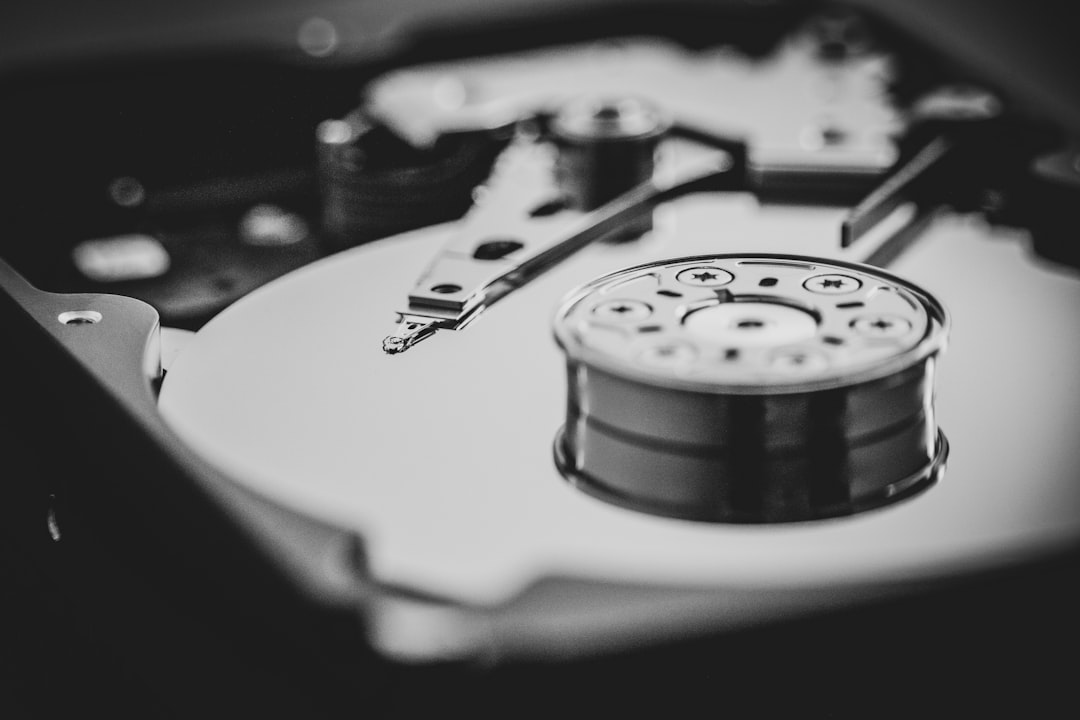
Additionally, defragmentation (for non-SSD users) reorganizes fragmented data blocks so that files load more efficiently. Although SSDs do not require traditional defragmentation, optimizing storage patterns can still improve performance when done correctly.
Advanced System Optimizer is particularly valuable for users who want periodic deep maintenance sessions rather than quick cleanups.
Best for: Power users and those who want a comprehensive optimization toolkit in one application.
4. Glary Utilities – Balanced and Feature-Rich Optimization
Glary Utilities strikes a balance between simplicity and extensive features. It offers both one-click maintenance and customizable modules, making it adaptable to different skill levels.
Its modular system allows users to choose exactly what they want to optimize, whether that is disk cleanup, memory management, or file repair.

Main Tools Included:
- Disk cleanup and temporary file removal
- Memory optimizer
- Duplicate file finder
- File repair and shortcut fixer
- Uninstaller manager
The duplicate file finder deserves special mention. Duplicate files take up valuable storage and can clutter file organization. By identifying copies across the system, users can reclaim space efficiently.
Memory optimization features help free unused RAM by stopping unnecessary background processes. This can be especially useful on systems with limited memory, improving responsiveness during multitasking.
Best for: Users looking for flexibility and deeper customization without overwhelming complexity.
How System Cleanup Utilities Improve Performance
To understand the value of these tools, it helps to examine how they directly impact system performance:
- Reduced disk usage: Removing clutter increases available storage and enhances file indexing speed.
- Faster startup: Disabling unnecessary boot programs reduces load time.
- Improved stability: Cleaning registry errors lowers the chance of system crashes.
- Enhanced privacy: Clearing browsing traces limits data tracking and exposure.
When combined with healthy computing habits, such as keeping your operating system updated and uninstalling unused programs, these utilities can significantly extend your computer’s lifespan.
Best Practices for Using Cleanup Tools
While optimization software can be powerful, it is important to use it responsibly. Here are some recommended best practices:
- Create restore points before performing registry cleanups.
- Avoid aggressive deletion of unfamiliar system files.
- Schedule routine scans rather than waiting for severe slowdowns.
- Keep only one primary cleanup tool to avoid redundancy or conflicts.
Over-cleaning can sometimes cause unintended issues, such as removing useful browser session data. Striking a balance between maintenance and caution is key.
Choosing the Right Utility for Your Needs
The best cleanup tool depends largely on your user profile:
- If you want simplicity, choose a user-friendly option like CCleaner.
- If you prioritize privacy and open source solutions, BleachBit is ideal.
- If you need deep system optimization, Advanced System Optimizer offers comprehensive tools.
- If you prefer a balanced feature set with customization, Glary Utilities fits well.
For many users, starting with basic cleanup and gradually exploring advanced features is the smartest approach.
Final Thoughts
System cleanup utilities are not magic wands, but they can work wonders when used appropriately. Modern computers accumulate digital debris just as physical spaces accumulate dust. Ignoring that buildup eventually leads to reduced efficiency, slower performance, and frustration.
By incorporating one of these four system cleanup utilities into your routine, you can maintain smoother performance, faster startup times, and improved overall reliability. Whether you prefer a lightweight open-source solution or a full-featured optimization suite, the key is consistency. Regular maintenance helps ensure that your system continues running at its best long after its initial setup.
In the end, optimizing performance is less about radical intervention and more about steady digital housekeeping.