How to Use Salesforce for Beginners: A Quick Tutorial
9 min read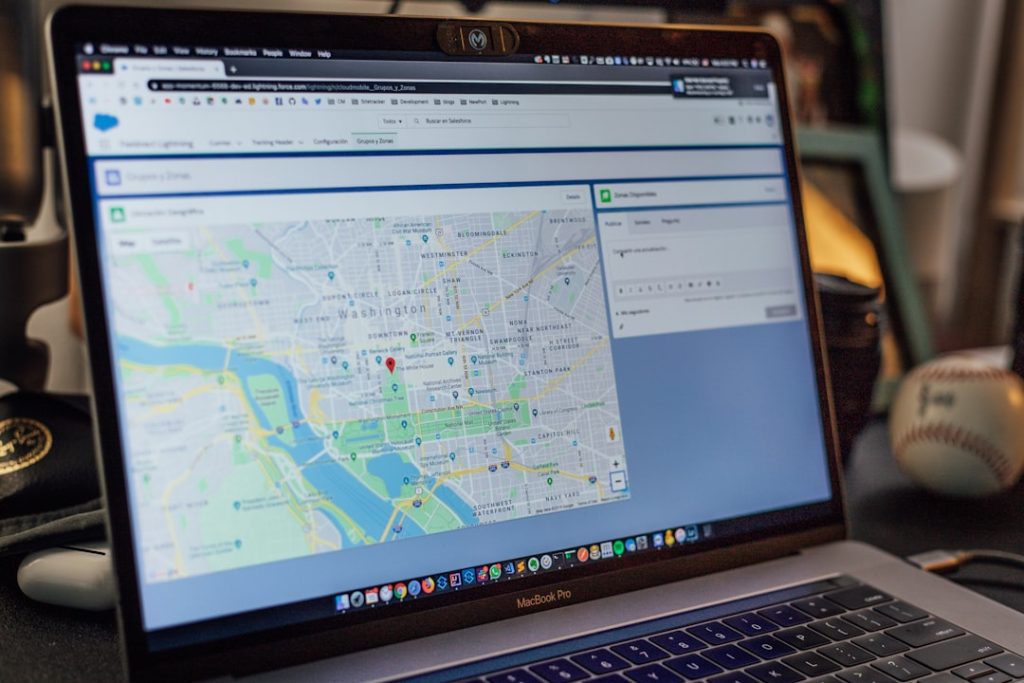
Salesforce can look intimidating the first time you open it. There are tabs, dashboards, records, reports, apps, objects, and plenty of buttons that seem to promise either productivity or confusion. The good news is that Salesforce is designed around a simple idea: helping businesses organize relationships, track work, and make better decisions. Once you understand the basics, it becomes much less like a maze and much more like a helpful command center.
TLDR: Salesforce is a customer relationship management platform that helps you manage leads, contacts, accounts, opportunities, tasks, and reports in one place. Beginners should start by learning the main navigation, understanding records and objects, and practicing with common sales workflows. Focus on entering clean data, using dashboards, and following your team’s process. With a little practice, Salesforce becomes a powerful daily tool rather than a complicated system.
What Is Salesforce?
Salesforce is a cloud-based CRM, or customer relationship management, platform. In simple terms, it helps businesses manage information about customers, prospects, deals, support cases, marketing activities, and more. Because it lives in the cloud, you can access it from a web browser or mobile app without installing heavy software on your computer.
Many companies use Salesforce to answer questions like:
- Who are our newest leads?
- Which deals are close to closing?
- What was the last conversation with this customer?
- Which sales reps are hitting their targets?
- How many support cases are still open?
For beginners, the key is not to learn everything at once. Salesforce is highly customizable, and your company’s version may look different from someone else’s. Start with the core concepts and the parts your role uses every day.
Understanding the Salesforce Home Page
When you log in, you usually land on the Home page. This is your starting point. Depending on how your organization has configured Salesforce, you may see performance charts, upcoming tasks, recent records, calendar items, or assistant cards that suggest next actions.
At the top, you will typically find the navigation bar. This contains tabs such as Home, Leads, Accounts, Contacts, Opportunities, Reports, and Dashboards. Think of these tabs as rooms in a digital office. Each room stores a different type of information.

You may also see an App Launcher, often represented by a grid icon. Salesforce apps are collections of tabs and tools built for specific teams or workflows. For example, a sales team might use a Sales app, while a support team might use a Service app.
Learn the Basic Salesforce Terms
Salesforce becomes much easier when you understand its vocabulary. Here are the core terms every beginner should know:
- Object: A type of data, such as Leads, Accounts, Contacts, or Opportunities. You can think of an object like a spreadsheet table.
- Record: One specific entry within an object. For example, one company in Accounts or one person in Contacts.
- Field: A piece of information on a record, such as phone number, email, industry, deal amount, or status.
- Lead: A potential customer who has not yet been qualified.
- Account: A company or organization you do business with, or hope to do business with.
- Contact: A person associated with an account.
- Opportunity: A potential sale or deal that you are actively working on.
- Task: A to-do item, such as making a call, sending an email, or following up after a meeting.
Once these terms feel familiar, the platform starts to make sense. Most actions in Salesforce involve creating, updating, searching, or reporting on records.
How to Search in Salesforce
One of the fastest ways to find information is by using the global search bar at the top of the page. Type a company name, person’s name, email address, phone number, or deal title, and Salesforce will show matching records.
If you are not sure where something is stored, global search is your friend. For example, if you type “Acme,” Salesforce may show an Account named Acme Ltd, Contacts who work there, and Opportunities linked to that account.
To search more effectively:
- Use specific keywords, such as a full company name or email address.
- Check the record type before opening a result.
- Use filters if Salesforce shows too many matches.
- Look at recently viewed records if you opened the item earlier.
Working with Leads
A Lead is often the first stage of a potential customer relationship. Leads may come from website forms, events, referrals, advertising campaigns, or manual entry. Your job might be to review leads, qualify them, and decide whether they are worth pursuing.
To create a lead, go to the Leads tab and select New. Fill in important details such as name, company, email, phone number, lead source, and status. Try to provide as much accurate information as possible. Clean data early on prevents confusion later.
Common lead statuses include:
- New: The lead has entered the system but has not been contacted.
- Working: Someone is actively communicating with the lead.
- Qualified: The lead is a good fit and may become an opportunity.
- Unqualified: The lead is not a good fit at this time.
When a lead is qualified, it can be converted. Converting a lead usually creates an Account, Contact, and sometimes an Opportunity. This is a major step because it moves the person or company from early interest into an active business relationship.
Managing Accounts and Contacts
Accounts and Contacts are central to Salesforce. An Account usually represents a business or organization. A Contact represents a person connected to that account. For example, if “Brightline Software” is an Account, “Maria Lopez, VP of Operations” might be a Contact under that account.
When viewing an account record, you can often see related contacts, opportunities, activities, notes, files, and cases. This gives you a full picture of the relationship. Instead of hunting through email threads or spreadsheets, you can see important customer details in one place.

As a beginner, focus on keeping account and contact information accurate. Update phone numbers, job titles, email addresses, and notes after meaningful conversations. If your team relies on Salesforce, outdated information can cause missed follow-ups, duplicate outreach, or awkward customer interactions.
Tracking Sales with Opportunities
An Opportunity represents a potential sale. If a lead has real buying interest, budget, and a possible timeline, that deal may be tracked as an opportunity. Opportunities help teams understand revenue pipeline and forecast future sales.
Opportunity records usually include fields such as:
- Opportunity Name: A clear name for the deal.
- Account Name: The company connected to the opportunity.
- Stage: Where the deal is in the sales process.
- Close Date: The expected date the deal may close.
- Amount: The estimated value of the sale.
- Probability: The likelihood that the deal will close.
Stages vary by company, but they often include steps such as Prospecting, Qualification, Proposal, Negotiation, Closed Won, and Closed Lost. Keeping the stage updated is important because managers and teammates use it to understand what is happening across the pipeline.
A helpful habit is to update an opportunity immediately after a customer interaction. Add notes, adjust the next step, update the close date if needed, and create a follow-up task. This keeps the deal moving and gives everyone better visibility.
Using Tasks and Activities
Salesforce is not just a database; it is also a productivity tool. Tasks help you remember what to do next. Activities may include calls, emails, meetings, and follow-ups. When logged properly, they create a timeline of communication with a customer or prospect.
For example, after a discovery call, you might create a task called “Send pricing overview” with a due date of tomorrow. You might also log the call and include a short summary: Customer is interested in annual plan, needs approval from finance, follow up next Tuesday.
Good activity tracking helps in several ways:
- It prevents important follow-ups from slipping through the cracks.
- It gives teammates context if they need to step in.
- It helps managers coach and support sales or service teams.
- It creates a history of the relationship over time.
Creating and Reading Reports
Reports turn Salesforce data into useful answers. A report might show all open opportunities this quarter, leads by source, accounts in a specific industry, or tasks due this week. Beginners do not need to become report experts immediately, but learning to read and run reports is very useful.
To open a report, go to the Reports tab. You may see folders organized by team or topic. Click a report to view the results. Many reports include filters, columns, totals, and charts. If you have permission, you may be able to edit filters or save your own version.
When reading a report, ask:
- What question is this report answering?
- Which records are included or excluded?
- Are there filters, such as date range, owner, stage, or status?
- Is the data current and complete?
If the report looks wrong, the issue may not be the report itself. It may be incomplete or outdated data in the records. This is why consistent data entry matters so much.
Using Dashboards
A Dashboard is a visual summary of reports. It may include charts, tables, gauges, and metrics. Dashboards are helpful because they let you understand performance at a glance without opening several reports individually.
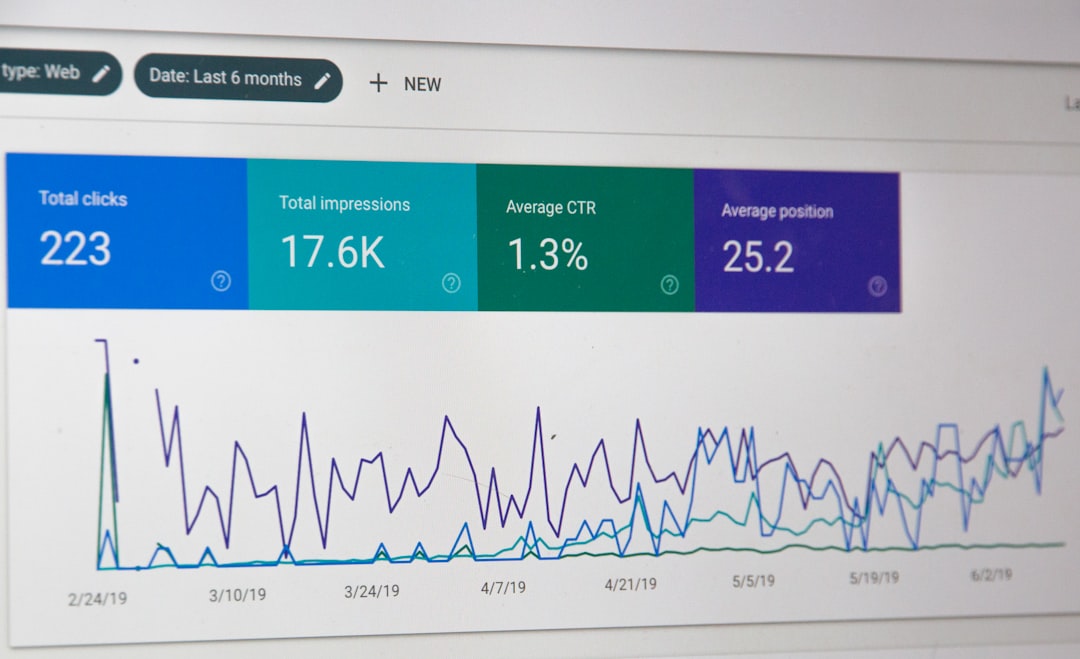
For example, a sales dashboard might show total pipeline value, deals closing this month, top opportunities, lead conversion rates, and individual rep performance. A support dashboard might show open cases, average response time, and customer satisfaction scores.
Remember that dashboards are only as reliable as the data behind them. If deals are not updated or tasks are not logged, the dashboard may tell an incomplete story.
Beginner Tips for Using Salesforce Well
Salesforce rewards consistency. You do not need to know every advanced feature on day one, but you should develop good habits early.
- Update records quickly: Do not wait until Friday afternoon to enter a week’s worth of notes.
- Avoid duplicates: Search before creating a new lead, account, or contact.
- Use clear notes: Write notes that another person could understand later.
- Follow your team’s process: Salesforce works best when everyone uses the same stages, statuses, and definitions.
- Keep required fields accurate: Required fields often power reporting and automation.
- Ask before changing important data: If you are unsure, check with an admin or manager.
Common Beginner Mistakes to Avoid
New users often make predictable mistakes. The first is treating Salesforce like a personal notebook instead of a shared system. Remember, your updates may affect reports, dashboards, workflows, and other people’s work.
Another common mistake is creating duplicate records. If the same company appears three times under slightly different names, the team can lose track of conversations and opportunities. Always search first.
A third mistake is leaving fields blank because they seem unimportant. In Salesforce, small details can power major insights. A missing lead source, close date, or industry value can make reports less useful.
How to Keep Learning
The best way to learn Salesforce is by using it in real situations. Start with the records and workflows that matter most to your role. If you are in sales, focus on leads, contacts, accounts, opportunities, and activities. If you are in service, focus on cases, account history, and customer communication. If you are a manager, focus on reports and dashboards.
Salesforce also offers built-in help features and guided learning resources. Your organization may have internal documentation, training videos, or a Salesforce administrator who can answer questions. Do not be afraid to ask why certain fields or steps matter. Understanding the reason behind the process makes the system much easier to use.
Final Thoughts
Using Salesforce as a beginner is less about memorizing every feature and more about understanding the flow of information. Leads become qualified prospects, prospects become accounts and contacts, opportunities track potential revenue, and reports turn all that activity into insight. Once you see how the pieces connect, Salesforce becomes a practical tool for managing relationships and making smarter decisions.
Start small, keep your data clean, and build good habits. Over time, you will move from simply entering information to using Salesforce strategically. That is when the platform becomes truly powerful: not just as a place to store customer data, but as a system that helps you know what to do next.