How to Use Resource Packs from Modrinth (Guide)
5 min read
Resource packs are one of the easiest and most powerful ways to customize the look and feel of Minecraft. From ultra-realistic textures to minimalist cartoon styles, they can completely transform gameplay without altering core mechanics. Modrinth, a popular open-source platform for Minecraft mods and content, has become a go-to source for high-quality resource packs. This guide explains exactly how to find, download, install, and manage resource packs from Modrinth safely and effectively.
TLDR: To use resource packs from Modrinth, find a pack on the website, download the correct version for your Minecraft edition, and place the file into your resourcepacks folder. Activate it through the Minecraft settings menu under “Resource Packs.” Always match the resource pack version with your game version to avoid issues. For modded setups, check compatibility requirements before installing.
What Are Resource Packs?
Resource packs modify textures, sounds, fonts, and other visual elements in Minecraft. They do not typically change gameplay mechanics like mods do. Instead, they enhance aesthetics and immersion.
- Texture upgrades – Replace default block and item textures
- Sound changes – Modify in-game audio files
- Custom fonts – Alter text appearance
- UI tweaks – Change menus and interface visuals
Because they do not modify core code, resource packs are lightweight and safe to install, especially when downloaded from reliable platforms like Modrinth.
Why Use Modrinth for Resource Packs?
Modrinth is known for its clean interface, open-source philosophy, and strong moderation. It supports:
- Minecraft Java Edition resource packs
- Multiple game versions
- Clear version compatibility filters
- Community ratings and descriptions
This makes it easier to find trustworthy and well-maintained packs.
Image not found in postmetaStep-by-Step Guide to Downloading Resource Packs from Modrinth
1. Visit the Modrinth Website
Navigate to Modrinth’s homepage and select the “Resource Packs” category. Use filters to narrow results:
- Minecraft version (e.g., 1.21, 1.20.4)
- Popularity
- Recently updated
Using filters ensures compatibility with your installed game version.
2. Choose a Resource Pack
Click on a pack to view its:
- Description and features
- Screenshots
- Supported versions
- Installation instructions (if any special steps are needed)
Always scroll down to the Versions section to confirm that the file matches your Minecraft installation.
3. Download the Correct File
Click the download button next to the version compatible with your game. The file will usually download as a .zip file.
Important: Do not extract the ZIP file unless the creator specifically instructs you to do so. Minecraft reads resource packs directly in ZIP format.
How to Install Resource Packs in Minecraft Java Edition
After downloading, installation takes only a few steps.
Method 1: Using the In-Game Folder Shortcut
- Open Minecraft Java Edition.
- Click Options.
- Select Resource Packs.
- Click Open Pack Folder.
This opens the correct folder automatically.
- Drag and drop the downloaded .zip file into the folder.
- Return to Minecraft and click Done.
- Select the pack from the left column and move it to the right (active column).
Method 2: Manually Locating the Folder
If needed, the default path for Windows users is:
C:\Users\[YourName]\AppData\Roaming\.minecraft\resourcepacks
On macOS:
~/Library/Application Support/minecraft/resourcepacks
Simply place the ZIP file inside this folder.
Using Resource Packs with Modrinth App
If using the Modrinth App launcher, resource pack installation becomes even easier:
- Open the Modrinth App.
- Select your Minecraft instance.
- Click Add Content.
- Search for the resource pack.
- Click Install.
The launcher automatically places the file in the correct directory.
Ensuring Version Compatibility
Version mismatch is the most common issue users face. A pack designed for Minecraft 1.19 may not fully function in 1.21.
Before installing, confirm:
- Your Minecraft version (shown in the launcher)
- The supported version listed on Modrinth
- Any dependencies (such as OptiFine or Fabric API)
Common Compatibility Requirements
| Feature Type | Requires Extra Mod? | Example |
|---|---|---|
| Connected textures | Often Yes | OptiFine |
| Custom skyboxes | Often Yes | OptiFine |
| Basic texture changes | No | Vanilla support |
| Animated entity textures | Sometimes | OptiFine or similar |
Always read the pack description to identify additional requirements.
How to Manage Multiple Resource Packs
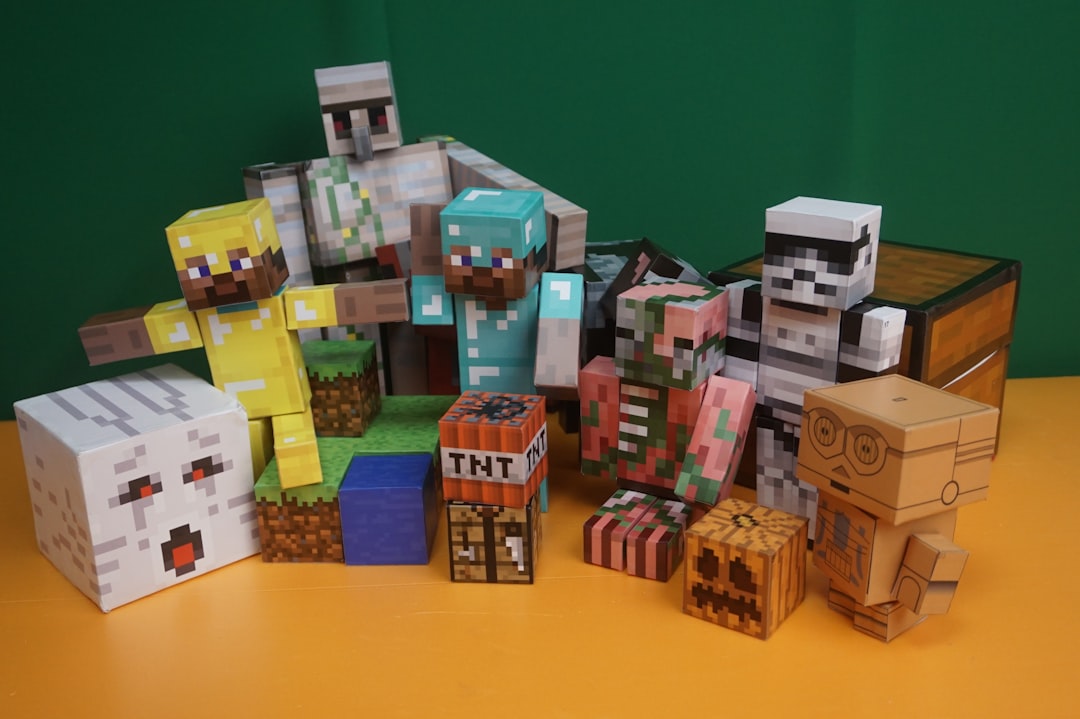
Minecraft allows multiple packs to be loaded at the same time. Their order determines priority.
- Top of the list = highest priority
- Bottom of the list = lowest priority
This allows players to combine packs—for example, using a base texture pack with a smaller add-on pack.
Tips for Managing Packs:
- Keep only necessary packs installed to reduce clutter
- Rename files clearly for better organization
- Remove outdated packs after major Minecraft updates
Troubleshooting Common Issues
Pack Not Showing in Menu
- Ensure the file remains in ZIP format
- Confirm it is in the correct resourcepacks folder
- Restart Minecraft
Textures Appear Missing or Pink/Black
- Check version compatibility
- Verify required mods are installed
- Re-download the pack in case of file corruption
Game Performance Drops
- High-resolution packs (128x, 256x, 512x) require more RAM
- Reduce video settings if necessary
- Allocate more memory in the Minecraft launcher
Safety Tips When Downloading
Although Modrinth is moderated, users should still follow best practices:
- Download only from official project pages
- Avoid re-uploaded packages elsewhere
- Check user reviews and update dates
- Keep antivirus software active
Because resource packs are typically simple ZIP archives, they are lower risk than executable files—but awareness is still important.
Enhancing Resource Packs with Shaders
For players seeking advanced visuals, combining a resource pack with shaders creates dramatic improvements. While resource packs modify textures, shaders affect lighting, reflections, shadows, and water behavior.
Shaders usually require:
- OptiFine or Iris
- A capable graphics card
When paired correctly, even simple texture packs look significantly more immersive.
Backing Up and Updating Resource Packs
It is wise to:
- Back up your resourcepacks folder before major Minecraft updates
- Check Modrinth for updated versions regularly
- Delete deprecated packs to prevent loading conflicts
Maintaining a clean installation ensures smoother gameplay and fewer errors.
Frequently Asked Questions (FAQ)
1. Do resource packs work in Minecraft Bedrock Edition?
Modrinth primarily hosts content for Minecraft Java Edition. Bedrock uses a different file format and marketplace system, so Java resource packs typically do not work for Bedrock.
2. Should the resource pack be extracted?
No. Most resource packs should remain in ZIP format. Extracting them can prevent Minecraft from recognizing the pack correctly.
3. Can multiple resource packs be used at once?
Yes. Minecraft allows stacking multiple packs. The order determines which textures override others.
4. Why is my resource pack marked “Incompatible”?
This warning appears when the pack’s version differs from your game version. It may still work, but some textures could be missing or broken.
5. Are resource packs safe to download from Modrinth?
Modrinth moderates uploads and provides transparency about creators and versions. While generally safe, users should still verify compatibility and download from official project pages only.
6. Do resource packs affect performance?
High-resolution packs can increase memory and GPU usage. Lower-resolution packs (16x or 32x) usually have minimal impact.
7. How do you uninstall a resource pack?
Open the resourcepacks folder and delete the ZIP file, or deactivate it from the in-game resource pack menu.
Using resource packs from Modrinth is a straightforward process that dramatically expands Minecraft’s visual possibilities. With proper version matching, careful installation, and organized management, players can customize their experience safely and efficiently. Whether aiming for realism, fantasy, or nostalgic simplicity, the right resource pack is only a few clicks away.