How to Revert to a Previous Commit in GitHub
5 min read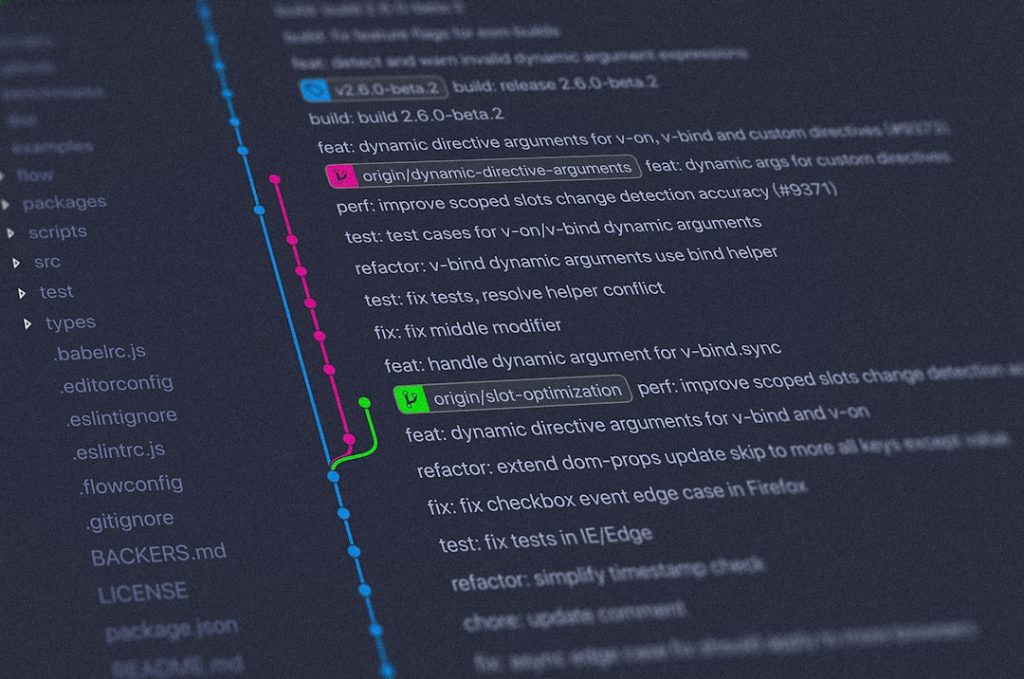
Version control is the backbone of modern software development, and GitHub provides a powerful platform for managing changes across teams and projects. However, even experienced developers occasionally need to return to a previous state of their codebase. Whether due to a faulty deployment, an unintended merge, or experimental changes gone wrong, knowing how to revert to a previous commit in GitHub is an essential skill. This article explains the process in a clear, structured, and professional manner to help you confidently restore your repository when needed.
TLDR: Reverting to a previous commit in GitHub can be done safely using git revert, or more forcefully using git reset when appropriate. The right method depends on whether changes have already been shared with others. For collaborative projects, git revert is usually the safest option. Always review your commit history and communicate with your team before making significant changes.
Understanding Commits and Repository History
Before reverting to a previous commit, it is important to understand how Git tracks changes. Every time you make a commit, Git records a snapshot of your repository at that specific point in time. These commits are organized in a timeline known as the commit history.
You can view your commit history locally by running:
git logOn GitHub’s web interface, you can navigate to your repository and click on the “Commits” link to view the history.

Each commit has a unique SHA (a long string of characters) that serves as its identifier. To revert to a previous commit, you will need this commit hash.
Common Reasons to Revert to a Previous Commit
Reverting is not always an emergency maneuver. In professional environments, it is often a routine corrective action. Typical scenarios include:
- Bug introduction: A recent change causes errors in production.
- Faulty merge: Integration of a branch leads to instability.
- Accidental deletion: Critical files were removed unintentionally.
- Experiment rollback: A feature experiment needs to be discarded.
Understanding your objective will determine which method you should use to revert the changes.
Method 1: Revert a Commit Using git revert (Safe for Shared Repositories)
The recommended approach for most collaborative environments is git revert. This command does not erase history. Instead, it creates a new commit that undoes the changes introduced by a previous one.
Step 1: Identify the Commit
Find the commit hash using:
git log --onelineStep 2: Revert the Commit
git revert <commit-hash>For example:
git revert a1b2c3dGit will generate a new commit that reverses the specified commit’s changes.
Step 3: Push the Changes to GitHub
git push origin mainWhy this method is preferred:
- Preserves commit history.
- Safe for public and shared branches.
- Minimizes disruption in team workflows.
This method ensures transparency. Anyone reviewing the repository can clearly see both the original change and the corrective action.
Method 2: Revert Using git reset (Use with Caution)
Unlike git revert, the git reset command modifies the commit history. It effectively moves the branch pointer backward to a previous commit. This approach is powerful but potentially disruptive, especially if commits have already been pushed.

Soft Reset
git reset --soft <commit-hash>Effect: Moves the branch pointer but keeps changes staged.
Mixed Reset (Default)
git reset <commit-hash>Effect: Keeps changes in the working directory but unstages them.
Hard Reset
git reset --hard <commit-hash>Effect: Completely removes all commits after the specified one, including working directory changes.
Important: If the commits were already pushed to GitHub, you must force push:
git push origin main --forceThis can overwrite remote history and disrupt collaborators. Use it only if you are certain that no one else depends on those commits.
Reverting Through GitHub Web Interface
GitHub also provides a built-in revert feature for certain commits, especially those introduced via pull requests.
Steps:
- Navigate to your repository on GitHub.
- Click on “Commits.”
- Select the commit you want to revert.
- If available, click the “Revert” button.
GitHub will automatically create a new pull request with the revert changes.

This method is particularly useful for teams that follow structured code review and pull request workflows.
Reverting a Merge Commit
Reverting a merge commit requires additional attention. Git needs to know which parent to treat as the mainline.
git revert -m 1 <merge-commit-hash>The -m 1 option specifies the parent branch to keep. Choosing the wrong parent may result in unintended changes. Always review the merge commit carefully before proceeding.
Checking Out a Previous Commit Temporarily
If your goal is simply to inspect or test an older version of your code, you can use:
git checkout <commit-hash>This places your repository in a detached HEAD state. You can examine files, run tests, or create a new branch:
git checkout -b recovery-branchThis is a safe way to explore historical versions without altering your main branch.
Best Practices Before Reverting
Reverting changes should be executed thoughtfully. Consider the following professional guidelines:
- Communicate with your team: Avoid surprises in shared environments.
- Create a backup branch: Preserve current state before major resets.
- Review commit differences: Use git diff to confirm what will be undone.
- Test after reverting: Ensure system stability before redeployment.
- Avoid force pushes in public repositories: Protect collaborative integrity.
Disciplined change management minimizes risk and maintains trust within development teams.
Understanding the Risks
While reverting can solve immediate issues, improper usage can introduce new complications:
- Loss of uncommitted work (especially with –hard reset).
- Broken dependencies due to partial rollbacks.
- Collaboration conflicts after forced history rewrites.
In enterprise environments, many teams prefer revert commits over resets to maintain strong audit trails.
Choosing the Right Approach
The safest rule of thumb is:
- Use git revert for shared branches and public repositories.
- Use git reset for local corrections before pushing.
- Use the GitHub web interface when operating within pull request workflows.
Each method serves a legitimate purpose. The key is to evaluate the maturity of your project, the size of your team, and whether the changes have been widely distributed.
Conclusion
Reverting to a previous commit in GitHub is not merely a technical maneuver; it is an act of responsible version control management. By understanding the difference between reverting and resetting, developers can maintain repository integrity while correcting mistakes efficiently. In most team environments, creating a revert commit preserves transparency and collaboration. More aggressive methods such as hard resets should be reserved for controlled circumstances.
A disciplined, methodical approach to managing commits ensures stability, accountability, and long-term maintainability of your codebase. Mastering these techniques will allow you to handle setbacks decisively and professionally, reinforcing confidence in your development workflow.