How To Install Homebrew On Mac In 2026: Beginner-Friendly Step-By-Step Guide
5 min read
Homebrew is the most popular package manager for macOS, allowing you to quickly install and manage software from the Terminal. If you’re new to Mac development or simply want more control over your system, installing Homebrew is one of the smartest first steps you can take. In this beginner-friendly guide, you’ll learn exactly how to install Homebrew on Mac in 2026, how to verify it’s working, and how to start using it right away.
TLDR: Homebrew is a free package manager that makes installing software on macOS simple and fast. You can install it in minutes using a single Terminal command provided on the official website. After installation, you’ll verify it, update it, and start installing apps with easy commands like brew install. Even beginners with no coding experience can follow the steps below successfully.
What Is Homebrew and Why Should You Install It?
Homebrew is an open-source package manager designed specifically for macOS (and Linux). A package manager automates the process of installing, updating, and removing software.
Instead of manually downloading apps, dragging files, and dealing with dependencies, Homebrew allows you to install tools with a simple command, such as:
brew install git
That’s it. No hunting through websites. No complicated setup.
People use Homebrew to install:
- Developer tools like Git, Python, Node.js, and Docker
- Command-line utilities like wget and htop
- GUI apps like Google Chrome and Visual Studio Code
- Open-source software not available in the App Store
If you plan to code, experiment with development tools, automate tasks, or just enjoy having more control over your Mac, Homebrew is essential.
Before You Install: What You Need
The good news? You don’t need much.
Before installing Homebrew on macOS in 2026, make sure you have:
- A Mac running a recent version of macOS (Apple Silicon or Intel)
- Administrator access to your computer
- An internet connection
You’ll also need Command Line Tools for Xcode. Don’t worry—if they’re not installed, Homebrew will prompt you automatically.
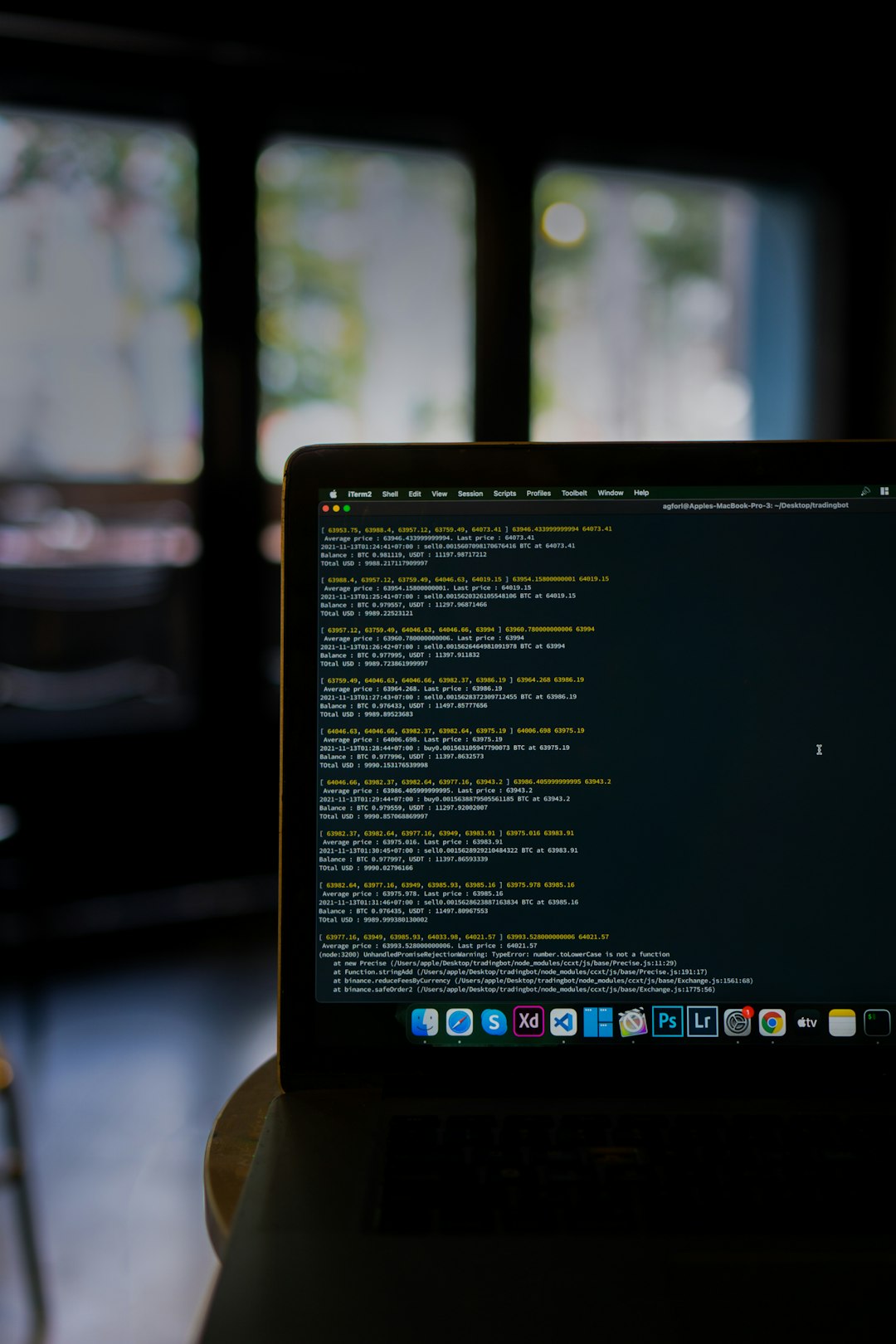
Step 1: Open the Terminal
The Terminal is where you’ll install Homebrew.
To open Terminal:
- Press Command (⌘) + Space to open Spotlight.
- Type Terminal.
- Press Enter.
You’ll see a simple text-based window. It might look intimidating at first, but don’t worry—you’ll only need to paste one command.
Step 2: Run the Official Homebrew Installation Command
In 2026, the safest way to install Homebrew is directly from its official website:
https://brew.sh
Copy the installation command shown on the homepage. It will look similar to this:
/bin/bash -c "$(curl -fsSL https://raw.githubusercontent.com/Homebrew/install/HEAD/install.sh)"
Now:
- Paste the command into Terminal.
- Press Enter.
- Enter your Mac password if prompted.
Note: When typing your password in Terminal, you won’t see characters appear. This is normal. Type it carefully and press Enter.
The installation process may take a few minutes. You’ll see text scrolling as Homebrew downloads and configures everything.
Step 3: Add Homebrew to Your Shell Path
After installation, you may see instructions telling you to add Homebrew to your PATH.
This step ensures your Mac knows where Homebrew is located.
If you’re using Apple Silicon (M1, M2, M3, etc.), you’ll typically run:
echo 'eval "$(/opt/homebrew/bin/brew shellenv)"' >> ~/.zprofile
Then:
eval "$(/opt/homebrew/bin/brew shellenv)"
If you’re on an Intel Mac, the directory may be different (usually /usr/local/).
To confirm everything works, type:
brew --version
If you see a version number, congratulations — Homebrew is successfully installed!
Step 4: Update Homebrew
Right after installation, it’s smart to run:
brew update
This refreshes Homebrew’s package list and ensures you’re using the latest formulas.
You can also check your system health with:
brew doctor
If it says “Your system is ready to brew”, you’re good to go.
Understanding Homebrew Commands
Now that Homebrew is installed, here are the most important commands every beginner should know:
| Command | What It Does | Example |
|---|---|---|
brew install |
Installs a package | brew install git |
brew uninstall |
Removes a package | brew uninstall node |
brew update |
Updates Homebrew | brew update |
brew upgrade |
Upgrades installed packages | brew upgrade |
brew search |
Searches for packages | brew search python |
This simple structure makes managing software dramatically easier than manual installations.
Installing Your First Package
Let’s try installing something useful — Git.
In Terminal, type:
brew install git
Homebrew will:
- Download Git
- Install required dependencies
- Configure everything automatically
Once finished, verify installation:
git --version
You should see the installed version displayed.
That’s the power of Homebrew — one command replaces a long manual process.
Installing GUI Apps with Homebrew Cask
Homebrew isn’t just for command-line tools. You can also install graphical applications using Homebrew Cask.
For example, to install Google Chrome:
brew install --cask google-chrome
To install Visual Studio Code:
brew install --cask visual-studio-code
Homebrew downloads and moves the app into your Applications folder automatically.
This means you can set up a new Mac in minutes by installing all your apps with a single script.
Apple Silicon vs Intel Macs in 2026
If you’re using Apple Silicon (most Macs sold after 2021), Homebrew installs in:
/opt/homebrew
If you’re on an older Intel Mac, it typically installs in:
/usr/local
This difference matters mainly when configuring environment paths or troubleshooting. Otherwise, the usage is identical.
Common Installation Issues (And Fixes)
Even though installation is simple, beginners sometimes encounter issues.
1. Command Not Found: brew
This usually means your PATH wasn’t configured correctly. Re-run the shell environment command provided during installation.
2. Permission Errors
Avoid using sudo with Homebrew. Homebrew is designed to run without elevated privileges.
3. Xcode Command Line Tools Missing
Run:
xcode-select --install
Then re-run the Homebrew install command.
How to Uninstall Homebrew (If Needed)
If you ever decide to remove Homebrew, you can run the uninstall script from the official repository. Like installation, it’s a single command process.
However, most users keep Homebrew permanently because of its convenience and reliability.
Why Homebrew Is Still Essential in 2026
macOS continues to evolve, but the need for efficient package management hasn’t changed.
Homebrew remains popular because it:
- Saves time
- Automates dependency handling
- Makes system setup reproducible
- Works seamlessly on Apple Silicon
- Has a massive open-source library
Whether you’re a developer, tech enthusiast, student, or power user, Homebrew simplifies how you interact with your Mac.
Final Thoughts
Installing Homebrew on Mac in 2026 is easier than ever. With a single Terminal command, you unlock access to thousands of tools and applications that can dramatically enhance your productivity.
If you’ve never used the Terminal before, this is a perfect introduction. You don’t need to be a programmer — you just need to follow a few simple steps.
Once installed, Homebrew becomes one of the most valuable utilities on your Mac. You’ll spend less time downloading and configuring software, and more time actually getting things done.
Now open Terminal, paste the command, and start brewing.