How to Fix Stretched Video: A Step-by-Step Guide
4 min read
Watching a video that appears stretched can quickly turn an enjoyable viewing experience into a frustrating one. Whether you’re dealing with a distorted home video, a problematic download, or a misconfigured media player setting, the issue of incorrect aspect ratios is more common than you might think. Understanding how to fix stretched video is essential for anyone who values high-quality visual content. This guide will walk you through reliable, step-by-step methods to correct and prevent stretched video on various devices and platforms.
TL;DR
Stretched video usually results from incorrect aspect ratio settings or file corruption. You can fix it by adjusting your video player settings, re-encoding the video, or using video editing software. Different scenarios call for different solutions, so it’s important to identify the source of the problem. Follow our step-by-step guide to determine the best fix for your specific case.
Understanding the Problem: What Causes a Video to Stretch?
A stretched video typically means that the aspect ratio—essentially the width-to-height ratio of the image—is incorrect. For example, a video that should appear in a 16:9 widescreen format may be forcibly displayed in a 4:3 standard format, leading to distortion.
Common causes include:
- Incorrect media player settings
- Improper encoding or file conversion
- Outdated or incompatible display drivers
- LCD monitor resolution mismatches
- Metadata errors in the video file
Step 1: Check the Source Video
The first thing you should do is determine whether the stretch comes from the video source itself or your playback method. Try playing the video in a different media player or on a different device to see if the issue persists. If the video remains stretched everywhere, then the problem likely lies within the video file rather than your playback settings.
Try the following:
- Play the video on VLC, Windows Media Player, or a mobile device
- Compare it with another similar resolution file
- Check the file properties including resolution and aspect ratio
Step 2: Adjust Playback Settings
If the file plays correctly on some devices but not others, the problem is likely on the playback side. Most popular video players allow you to manually adjust aspect ratio settings.
VLC Media Player
- Open the video in VLC
- Right-click on the video window, go to Video > Aspect Ratio
- Select the correct ratio (commonly 16:9 or 4:3)
Windows Media Player
WMP has more limited aspect ratio settings, so consider switching to VLC or another media player with better support for manual configuration.
Media Players on Smart TVs
Smart TVs usually detect the aspect ratio automatically, but you can override this by accessing the picture settings:
- Open your TV’s settings menu
- Navigate to Picture Settings
- Find Aspect Ratio or Picture Size and select Original or Auto
Step 3: Re-Encode the Video
If the problem is intrinsic to the video file—perhaps due to a faulty encoding process—you may need to re-encode it using a tool like HandBrake or FFmpeg.
Using HandBrake
- Download and install HandBrake (https://handbrake.fr)
- Open the video file
- Under the Dimensions tab, input your desired resolution and aspect ratio
- Select a format (e.g., MP4) and click Start Encode
Using FFmpeg (For Advanced Users)
Run the following command in your terminal or command prompt:
ffmpeg -i input.mp4 -vf "scale=1280:720,setdar=16/9" output.mp4This command rescales the video to 1280×720 resolution and sets the display aspect ratio to 16:9. Be sure to adjust parameters to your specific needs.
Step 4: Use Video Editing Software
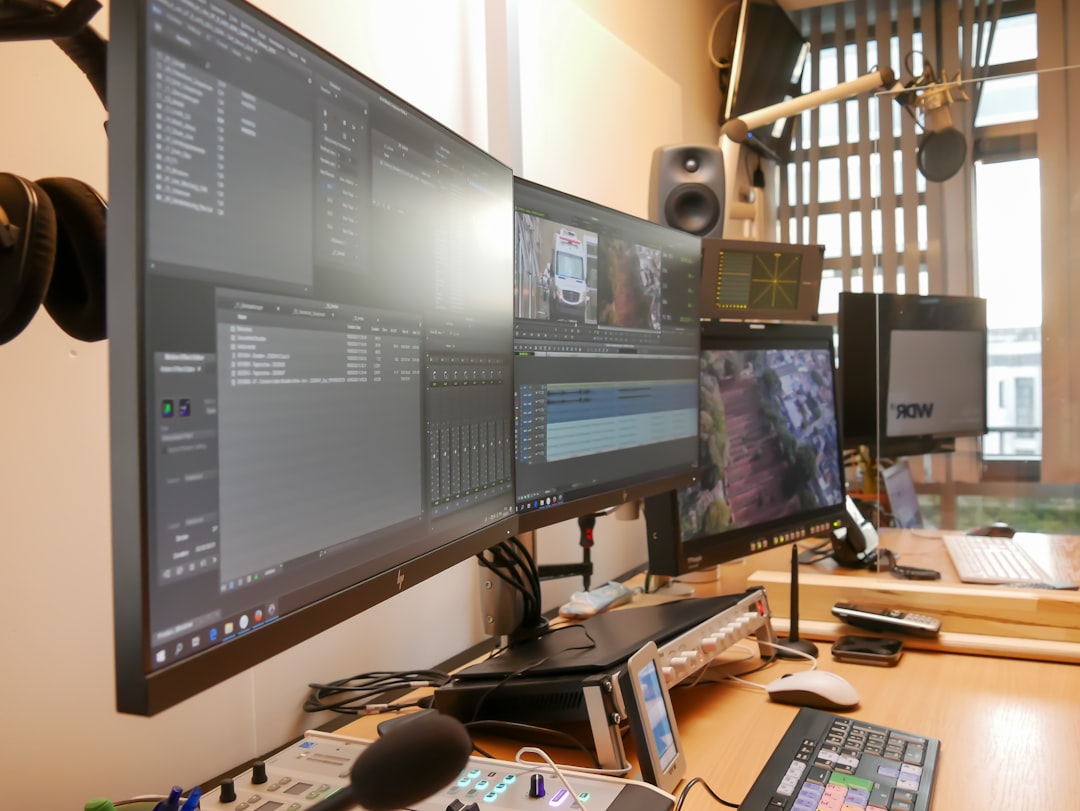
If you’re working with personal content or need more precision, using video editing software like Adobe Premiere Pro, DaVinci Resolve, or Sony Vegas can help.
Adobe Premiere Pro
- Import the video into your project
- Right-click the clip in the timeline and select Set to Frame Size
- Manually adjust the scale and position under the Effect Controls panel
- Export the video with your new settings
DaVinci Resolve
- Navigate to the Inspector panel
- Adjust Zoom and Aspect Ratio to fix the stretch
- Render the corrected video
Step 5: Update Drivers and Displays
Sometimes, a stretched video issue results not from the video itself, but from outdated or faulty display drivers. This is especially true when using external monitors or TVs via HDMI or VGA connections.
To update your display driver:
- Open Device Manager on Windows
- Expand the Display adapters section
- Right-click your GPU and select Update driver
- Follow the prompts to search and install the latest driver
If you’re using macOS, run Software Update to ensure your drivers are up-to-date.
Step 6: Adjust Display or Monitor Settings
For users who experience stretching only on an external monitor or TV, specialized settings on the display unit may be the culprit. Access your monitor or TV’s menu system and look for settings like:
- Screen Fit
- Just Scan
- Aspect Ratio or Scaling
Switch these settings to either Auto, Original, or 1:1 to eliminate stretched displays.
Prevention Tips to Avoid Stretched Video in the Future
- Always preview export settings in video editing software
- Stick to standard resolutions and aspect ratios when recording video
- Avoid converting videos with poorly configured or unknown online tools
- Keep your software and display drivers up-to-date
Conclusion
Fixing a stretched video may seem intimidating at first, but with a little knowledge and the right set of tools, it’s entirely manageable. Whether you’re correcting the playback settings or diving into advanced re-encoding, the key is understanding the root cause of the distortion. Use this guide as a trusted reference the next time you encounter an out-of-shape video, and rest assured knowing you can restore it to its proper proportions.