A Complete Guide to Using a Mac App Wallpaper on macOS
5 min read
Mac users are well-known for their appreciation of aesthetics and design. With sleek hardware and an intuitive operating system, it’s no surprise that customizing and enhancing the desktop experience on macOS is a popular activity. One of the best ways to personalize a Mac is through wallpaper changes, and macOS offers plenty of tools and apps to manage this. One notable way to upgrade this experience is by using a dedicated Mac wallpaper app that takes customization and variety to the next level.
TL;DR
Wallpaper apps for macOS offer a streamlined and creative way to personalize your desktop. They provide features like automatic wallpaper rotation, high-resolution image downloads, and access to curated collections. Whether you’re using a static background or dynamic wallpapers that shift based on the time of day, a Mac wallpaper app can enhance both the aesthetic appeal and functionality of your workspace. This guide walks you through setting up a wallpaper app, choosing the best one, and troubleshooting common issues.
Why Use a Wallpaper App on macOS?
macOS already includes a built-in method of changing wallpapers, but it is often limited to pre-installed options and manual image selection. A wallpaper app, however, provides features like:
- Auto-changing wallpapers based on time intervals or system events.
- Access to wide collections of high-resolution backgrounds.
- Integrated tools for organization, filtering, and tagging.
- Dynamic wallpapers that shift with time or match ambient light.
Using a wallpaper app opens up a wider world of creative expression and allows users to keep their desktops fresh and inspiring daily.
Top macOS Wallpaper Apps
Several wallpaper apps are available for macOS, each with different capabilities. Here are a few top picks:
- Wallpaper Wizard 2: Offers a stunning catalog of curated wallpapers, automatic cycling, and category filtering.
- Unsplash Wallpapers: Powered by the Unsplash image library for a wide variety of free, high-quality photos.
- 24 Hour Wallpaper: Features dynamic wallpapers that change based on time of day and location, similar to Apple’s built-in dynamic desktop.
- Irvue: A lightweight and speedy wallpaper switcher that integrates with Unsplash and displays a new wallpaper at regular intervals.
- Dynamic Wallpaper Engine: For users who love animated wallpapers, giving macOS desktops a fresh visual experience.
Each of these apps offers a unique approach, and the right one for you depends on your preferences regarding automation, design, and minimal system footprint.
How to Install and Use a Mac Wallpaper App
Setting up a wallpaper app on macOS is generally a smooth process. Here is a step-by-step guide:
Step 1: Download the App
Visit the official website or the Mac App Store. Ensure you are downloading from a trusted source to avoid malware or poorly optimized apps.
Step 2: Grant Necessary Permissions
Some wallpaper apps require screen recording or Accessibility permissions. These can be enabled by going to:
- System Settings → Privacy & Security → Screen Recording
- System Settings → Accessibility
Enable access for the wallpaper app to function properly.
Step 3: Choose Your Wallpaper Source
Apps like Irvue and Unsplash ask you to choose categories, tags, or individual collections of wallpapers. You can customize this to suit your taste — abstract art, nature, cities, or minimalism, for example.
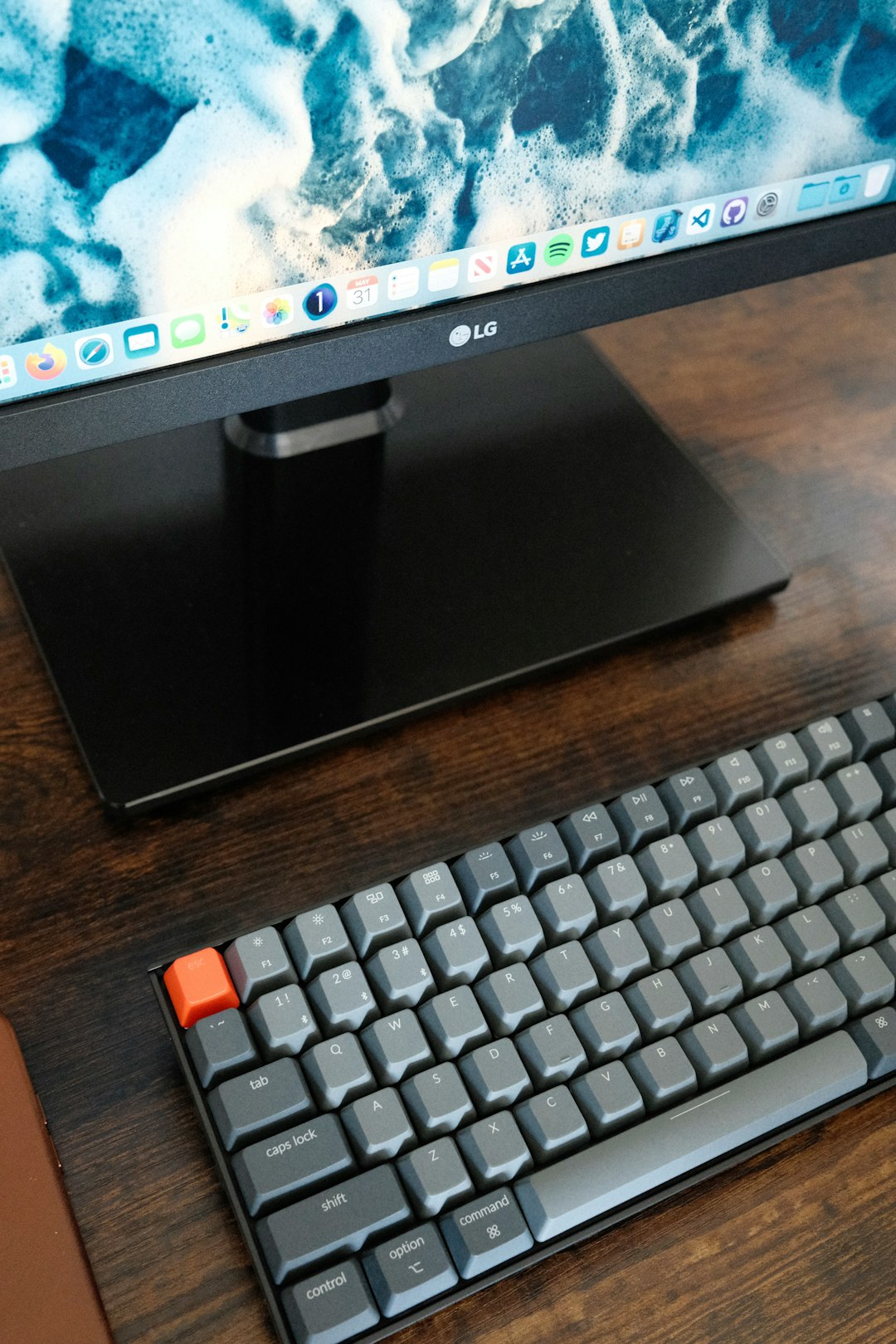
Step 4: Enable Auto-Rotation (If Supported)
This feature allows your wallpaper to change automatically based on an interval (every hour, every day, etc.) or triggered by events like screen wake or startup.
Some wallpaper apps also allow syncing dynamic wallpaper changes with the time of day and local light conditions, giving a more immersive experience.
Using Dynamic Wallpaper on macOS
macOS supports native dynamic desktops, but apps like 24 Hour Wallpaper enhance this significantly. These apps track the sun’s position and adjust your background image in real-time, making them ideal if you prefer a subtle yet dynamic aesthetic.
To use dynamic wallpapers:
- Choose a dynamic wallpaper pack from within the app.
- Set permissions to access your location if the wallpaper adjusts with local time.
- Enable system startup launch if you want your wallpaper synced at boot.
These dynamic wallpapers don’t just look great, they can also reduce screen fatigue by tilting brightness and color temperature through the day.
Tips for Optimizing Your Wallpaper Experience
To get the most out of your wallpaper app, consider these tips:
- Use high-resolution images — always opt for 4K or Retina-optimized images to ensure clarity.
- Avoid clutter — if your desktop is full of icons, choose simpler backgrounds to maintain focus.
- Create themed rotations — for example, travel wallpapers on Mondays, nature on weekends.
- Match with macOS themes — use wallpapers that complement your Light or Dark Mode setting for a more cohesive look.
Common Issues and Troubleshooting
While most wallpaper apps are reliable, users may encounter issues. Common problems include:
- Wallpaper not updating: Make sure the app has required permissions and is running in the background.
- App crashing: Check for updates, or re-download the app. Occasionally, apps might not yet be ready for the latest macOS version.
- Blurry image: Confirm you’re using a resolution that suits your display. A Retina screen needs wallpapers in high definition (HD) or 4K.
When in doubt, restart the app or the system. You can also reach out to app developers for support or begin with a clean install.
Final Thoughts
Using a wallpaper app on macOS isn’t just about creating a beautiful desktop. It’s about expressing personality, staying inspired, and even boosting productivity through visual design. Whether it’s a sunrise slowly emerging over a mountain range or a new city skyline appearing every day, the right wallpaper can genuinely enhance how you interact with your Mac daily.
FAQ: Mac Wallpaper Apps
- Can I use more than one wallpaper app at the same time?
It’s not advisable as they can conflict with each other. Stick to one app that best suits your needs. - Do wallpaper apps affect system performance?
Lightweight apps like Irvue have minimal impact. Animated wallpapers or 4K rotations can use more memory and GPU. - Are these apps free?
Many offer free versions, but features like dynamic wallpapers or higher resolution access may require a premium purchase. - Can I create my own dynamic wallpaper?
Yes! Some apps and tools like Dynaper allow you to create custom dynamic wallpapers using a sequence of images and time settings. - Will changing wallpapers drain my battery?
Dynamic and animated wallpapers may slightly reduce battery life during intense GPU use, but static auto-rotated wallpapers have minimal impact.