Sumo Go Menu: Setup and Customization Guide
9 min read
Implementing a digital menu is no longer a cosmetic upgrade for restaurants, cafés, food trucks, and takeaway businesses. A well configured menu can reduce ordering friction, improve accuracy, promote higher margin items, and create a more consistent guest experience. This guide explains how to set up and customize a Sumo Go Menu in a structured, practical way, with attention to reliability, clarity, and long term maintainability.
TLDR: Start by preparing your menu content, prices, images, categories, modifiers, and business details before configuring Sumo Go Menu. Set up the menu structure carefully, test every ordering path, and customize the appearance so it matches your brand without making the menu difficult to read. Review the menu regularly, especially after price changes, seasonal updates, or operational changes, to keep the customer experience accurate and professional.
Understanding the Purpose of Sumo Go Menu
Sumo Go Menu is best understood as a digital menu system designed to present food and beverage items in a clear, accessible, and manageable format. Depending on how your business uses it, the menu may support dine in browsing, takeaway ordering, delivery preparation, QR code access, or staff assisted ordering. The most effective setup is not simply a digital copy of a paper menu; it is an organized interface that helps customers make decisions quickly and confidently.
Before beginning setup, define what the menu must accomplish. A quick service café may prioritize speed, item photos, and simplified modifiers. A full service restaurant may need detailed descriptions, allergen notes, wine pairings, and course based categories. A food truck may need an especially compact menu with clear availability. Your setup choices should reflect your actual operation, not just the available features.
Preparation Before Setup
A disciplined preparation phase prevents most menu problems later. Gather all content in advance and verify it with the appropriate decision makers, such as the owner, chef, operations manager, or finance lead. Avoid building the menu from outdated print documents or informal notes, as this often leads to inconsistent pricing and incorrect item descriptions.
Prepare the following information before logging in to configure the menu:
- Menu categories: Examples include starters, mains, desserts, drinks, lunch specials, breakfast, and kids meals.
- Item names: Use names that are clear, concise, and easy for customers to understand.
- Descriptions: Include key ingredients, preparation style, and any important serving details.
- Prices: Confirm whether prices include tax, service charges, or optional add ons.
- Modifiers: List choices such as size, spice level, toppings, sides, sauces, and cooking preference.
- Dietary information: Identify vegetarian, vegan, gluten free, halal, nut containing, dairy containing, or spicy items where applicable.
- Images: Collect high quality, accurate photos that represent the actual product served.
- Availability rules: Note items available only at breakfast, lunch, weekends, holidays, or during limited promotions.
Creating the Basic Menu Structure
Begin by creating the main menu framework. A strong structure makes the menu easier for customers to navigate and easier for staff to update. Keep the number of top level categories manageable. If customers must scroll through too many sections, they may miss important items or abandon the menu before ordering.
Use familiar category names wherever possible. Terms such as appetizers, burgers, pasta, and soft drinks are more effective than overly creative labels that require explanation. Branding is important, but clarity should come first in a functional menu.
When arranging categories, consider the customer journey. Place high demand or time sensitive sections near the top. For example, a breakfast café should not bury coffee and pastries below less relevant items. A bar may want cocktails, beer, and small plates visible immediately. Restaurants often benefit from placing signature dishes or chef recommendations near the beginning, provided this does not disrupt logical browsing.
Adding Menu Items Correctly
Each item should be entered with consistency. Inconsistent capitalization, vague descriptions, and conflicting portion information can make the menu feel unreliable. Use a format that your business can maintain over time.
A good item entry typically includes:
- Name: Short and recognizable, such as “Grilled Chicken Bowl” or “Classic Margherita Pizza.”
- Description: One or two clear sentences highlighting ingredients and preparation.
- Base price: Confirmed and formatted consistently.
- Options: Any required or optional choices.
- Tags: Dietary, spicy, popular, new, or limited time labels.
- Image: A realistic photo where available.
Descriptions should be appealing but not exaggerated. For example, “Fresh pasta in a slow cooked tomato sauce with basil and parmesan” is more useful than “The best pasta you will ever taste.” Trustworthy menu writing is specific, accurate, and restrained. Customers appreciate confidence, but they rely on details.
Configuring Modifiers and Options
Modifiers are one of the most important parts of a digital menu setup. They determine how customers customize their orders and how clearly the kitchen receives instructions. Poorly configured modifiers can cause delays, waste, refunds, and customer dissatisfaction.
Separate modifiers into required and optional choices. A required modifier might be steak temperature, drink size, or choice of side. Optional modifiers might include extra cheese, additional protein, sauce on the side, or removal of an ingredient. If an item cannot be prepared without a specific decision, make that selection mandatory.
Use price adjustments carefully. If adding avocado costs extra, the menu should display the additional charge clearly before checkout or order confirmation. Hidden or unclear costs can damage trust. Similarly, avoid creating too many options for simple items. Excessive customization may slow ordering and increase preparation errors.
Using Images Responsibly
Images can improve conversion, especially for visual dishes, signature items, desserts, and drinks. However, inaccurate or overly edited photos can create unrealistic expectations. Use images that match actual portion size, plating, ingredients, and presentation. If your operation serves food in takeaway packaging, consider whether the image should reflect dine in plating or delivery reality.
For best results, use consistent lighting, background style, and image orientation. A menu with one polished image, one dark phone photo, and one cropped stock style image can look unprofessional. If you cannot photograph every item, prioritize best sellers and high margin items rather than filling the menu with inconsistent visuals.
Customizing the Visual Appearance
Customization should support readability and brand recognition. Choose colors, fonts, and layout settings that align with your business identity while remaining accessible on mobile screens. Many customers will view the menu under imperfect conditions: bright daylight, low restaurant lighting, small phone screens, or while standing in line.
Follow these principles when customizing the appearance:
- Use strong contrast: Text should be easy to read against the background.
- Limit font variety: One or two typefaces are usually enough.
- Keep buttons obvious: Actions such as add, customize, confirm, and view cart should be visually clear.
- Avoid clutter: Too many badges, banners, and promotional blocks can distract from ordering.
- Maintain consistency: Use the same naming, spacing, and image style across the menu.
Brand colors can be used for headers, buttons, category highlights, or promotional areas. However, do not sacrifice legibility. A serious setup favors customer confidence over decorative complexity.
Setting Business Information and Service Rules
Your menu should communicate operational details accurately. Customers need to know when items are available, whether ordering is open, what pickup or delivery rules apply, and whether special requests can be accommodated. If Sumo Go Menu allows business profile settings, confirm that opening hours, location details, contact information, service areas, and order timing are correct.
Pay close attention to time based availability. For example, breakfast items should not be orderable at dinner unless you genuinely serve them all day. Limited time specials should automatically expire or be manually removed when no longer available. If availability is not managed carefully, staff may have to cancel orders, which creates frustration and reduces confidence in the business.
Organizing Promotions and Featured Items
Promotions should be visible but controlled. A digital menu can highlight popular dishes, seasonal specials, bundles, discounts, or chef recommendations. These features are useful when they guide customers toward relevant choices. They become counterproductive when every item appears urgent or “featured.”
Use promotional labels with discipline. A popular tag should indicate actual customer demand. A new tag should be removed after the item is no longer new. A limited time item should have a clear end date. Serious menu management requires that promotions remain accurate, not simply attention grabbing.
Testing the Customer Experience
Before publishing the menu, test it thoroughly from the customer’s perspective. Use at least one mobile phone and one desktop or tablet if applicable. Do not only review the back end setup; interact with the menu as a first time customer would.
Test the following scenarios:
- Browsing each category and returning to the main menu.
- Selecting items with required modifiers.
- Adding optional extras and verifying price changes.
- Removing items or changing quantities.
- Checking dietary labels and descriptions.
- Viewing the cart or order summary.
- Testing unavailable items or time restricted menus.
- Confirming that taxes, fees, and totals display correctly.
If staff will use the menu to assist customers, invite them to test it as well. Kitchen and service staff often notice practical issues that managers miss, such as unclear modifier names or missing preparation instructions.
Publishing and Introducing the Menu
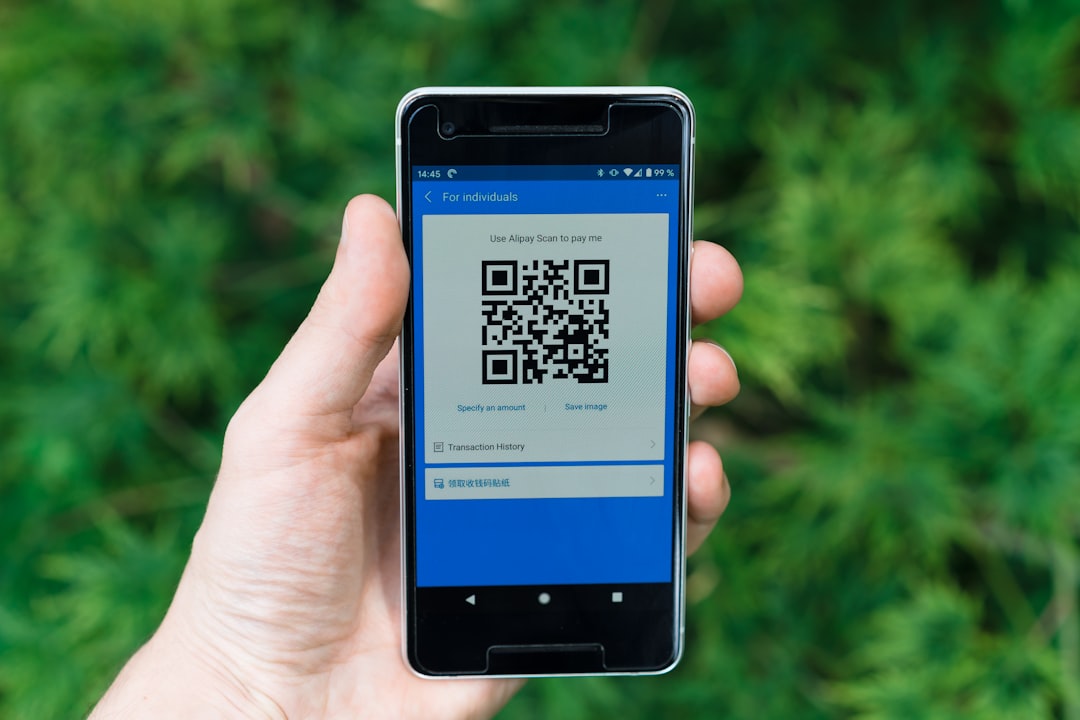
Once testing is complete, publish the menu according to your service plan. If you are using QR codes, ensure they are printed clearly and placed where customers naturally look: tables, counters, windows, receipts, takeaway bags, or signage. The QR code should lead directly to the active menu, not to a confusing intermediate page.
Train staff before launch. Even a well built digital menu can fail if employees do not understand how it works. Staff should know how to guide customers, explain item options, report errors, and handle requests that are not available digitally. If the menu supports online ordering, staff should also understand how orders appear and how to resolve discrepancies.
Maintaining the Menu Over Time
A Sumo Go Menu should not be treated as a one time setup project. Menus change, prices shift, suppliers run out of ingredients, and customer preferences evolve. Schedule regular reviews to keep the menu accurate and effective.
At minimum, review the menu when any of the following occur:
- Price changes are approved.
- Ingredients or suppliers change.
- Seasonal menus are introduced or removed.
- Opening hours or service rules change.
- Customer complaints mention menu confusion.
- New photography becomes available.
- Taxes, fees, or packaging charges are updated.
Use performance data if available. Items with high views but low orders may need better descriptions, improved photos, or price review. Items with frequent modification requests may need clearer default options. Items often removed from carts may indicate pricing concerns or unclear expectations.
Common Mistakes to Avoid
Several mistakes appear frequently in digital menu projects. The first is copying a print menu without adapting it for mobile browsing. Long blocks of text, tiny categories, and unclear layout choices do not translate well to a phone screen. The second is overloading the menu with too many modifiers. Customization is useful, but too many choices can overwhelm customers and disrupt kitchen workflow.
Another common mistake is failing to assign ownership. Someone must be responsible for menu accuracy. If no one owns the process, outdated pricing, unavailable items, and inconsistent descriptions will gradually accumulate. It is advisable to define who can edit the menu, who approves changes, and how updates are documented.
Final Checklist
Before considering your setup complete, confirm the essentials:
- All categories are logical and easy to navigate.
- All items have accurate names, descriptions, and prices.
- Modifiers are clear, priced correctly, and marked required where necessary.
- Images are accurate, professional, and consistent.
- Dietary information is reviewed and applied responsibly.
- Business hours and availability rules are correct.
- Promotions are current and not misleading.
- Testing has been completed on real devices.
- Staff understand how to support customers using the menu.
A properly configured Sumo Go Menu can strengthen both operations and customer experience. The key is to approach setup with the same seriousness you apply to food quality, service standards, and pricing decisions. When the menu is accurate, readable, and easy to maintain, it becomes more than a digital display; it becomes a dependable part of your business infrastructure.