Why MSVCP100.dll Is Missing and How to Restore It
5 min read
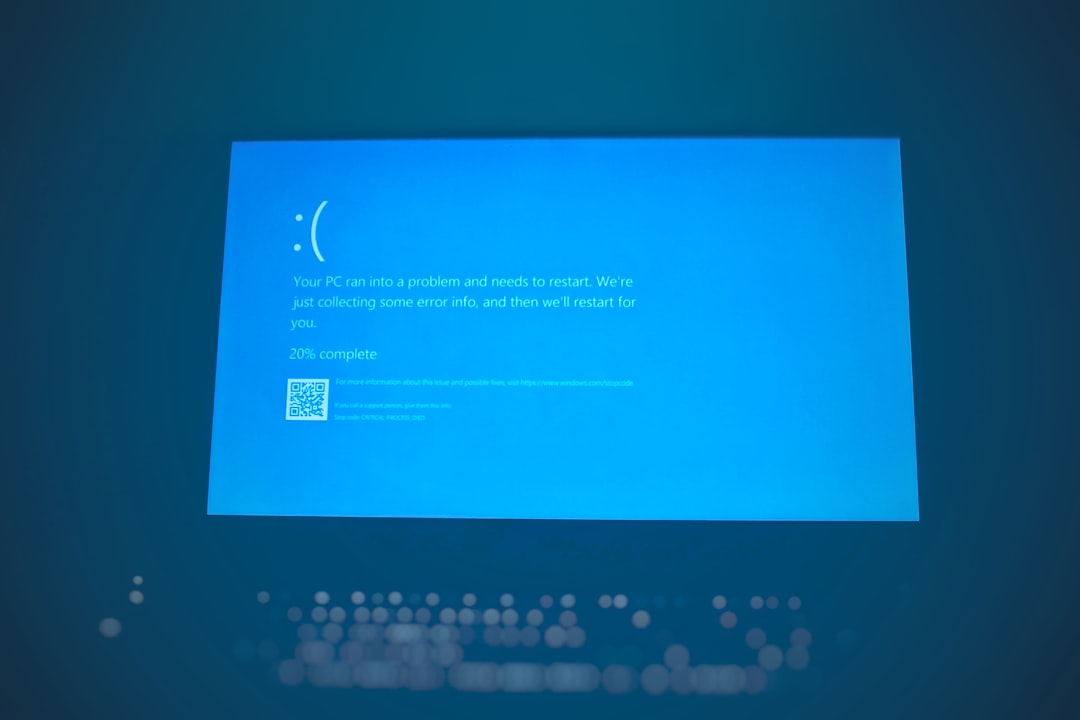
It’s a frustrating feeling when your computer throws an error just when you’re trying to open an important program or file. One of the more common errors Windows users face is a missing dynamic link library (DLL) file—especially the MSVCP100.dll error. This file is tied to Microsoft’s Visual C++ Redistributable package, and its absence can render many popular applications unable to run properly.
TLDR
The MSVCP100.dll is missing error often appears because the system lacks the Microsoft Visual C++ 2010 Redistributable Package. This DLL file is essential for running applications built with that version of Visual C++. Restoring it typically involves downloading & installing the correct package from Microsoft’s website or using System File Checker (SFC). Avoid downloading DLL files from third-party sources, as they may be unsafe.
What Is MSVCP100.dll?
MSVCP100.dll is part of Microsoft’s Visual C++ 2010 Redistributable Package. It stands for “Microsoft Visual C++ Runtime Library” and contains critical functions that allow Windows programs developed with Visual C++ to run smoothly. If this component is missing or corrupted, any software relying on it won’t launch and instead shows an error message.
Typical error messages might include:
- “The program can’t start because MSVCP100.dll is missing from your computer.”
- “MSVCP100.dll was not found.”
- “This application failed to start because MSVCP100.dll was not found.”
These alerts usually indicate a problem with your system’s runtime files or that the Visual C++ library has been uninstalled, corrupted, or improperly installed.
Why MSVCP100.dll Goes Missing
The missing DLL issue may arise due to several reasons:
- Uninstallation of Programs: Sometimes, uninstalling a program removes shared DLL files.
- Corruption or Deletion: Malware, disk errors, or accidental deletion might corrupt or remove the DLL.
- Software Conflicts: Installing multiple versions of the same libraries can cause conflicts, leading to errors.
- System Upgrade Issues: Moving to a new version of Windows without reinstalling necessary packages can result in missing components.
Regardless of the cause, the good news is that there are reliable solutions to restore this file and get your system back on track.
How to Restore MSVCP100.dll
1. Install the Microsoft Visual C++ 2010 Redistributable Package
This is the most recommended and reliable method:
- Go to the official Microsoft website.
- Search for “Microsoft Visual C++ 2010 Redistributable Package“.
- Select and download the version appropriate for your system (x86 for 32-bit, x64 for 64-bit).
- Install the downloaded file and restart your computer.
This should restore the MSVCP100.dll file automatically to your system directory.
2. Use System File Checker (SFC)
If installation doesn’t help or the file remains corrupted, try this built-in Windows utility:
- Open Command Prompt as Administrator.
- Type
sfc /scannowand press Enter. - Wait for the scan to complete. If any issues are found, Windows will attempt to repair them.
This tool checks your entire system for missing or damaged system files and replaces them as necessary.
3. Reinstall the Application That Shows the Error
If the error occurs with a specific application, reinstalling it might replace any damaged or missing dependencies:
- Uninstall the faulty application from your system.
- Restart your computer.
- Download and install the latest version of the software again.
4. Update Windows
Sometimes a simple system update includes necessary fixes and file components that could solve DLL issues.
- Go to Settings > Update & Security > Windows Update.
- Click on Check for updates and install any available updates.
5. Avoid Downloading DLLs from Third-Party Websites
It might be tempting to download the missing MSVCP100.dll file directly from the internet, but doing so can be dangerous. These sources are often unreliable and may inject malware or an incorrect version into your system.
Always use official Microsoft resources or trusted sources that package the DLL within a properly signed installer.
6. Use a System Restore Point
If the issue appeared recently after installing a new program or update, try rolling your system back to an earlier state:
- Search for “System Restore” in the Start menu.
- Follow the wizard and choose a restore point dated before the error first appeared.
- Let Windows complete the restore process and reboot.

Best Practices for Preventing DLL Errors
To avoid future problems with DLL files like MSVCP100.dll, consider the following:
- Regularly update Windows to keep system components current.
- Install official runtime packages directly from Microsoft when prompted during software installation.
- Use antivirus software to detect malware that could corrupt essential files.
- Avoid tampering with the Windows System32 directory.
Keeping your system healthy and files intact will minimize DLL issues and other system errors.
Frequently Asked Questions (FAQ)
Q1: What is MSVCP100.dll used for?
A: MSVCP100.dll is a runtime component of the Microsoft Visual C++ 2010 libraries, used by many applications to execute standard C++ operations. Without it, those programs may fail to run.
Q2: Is it safe to download MSVCP100.dll from a website?
A: No, downloading DLL files from third-party websites is not safe and may introduce malware. It’s strongly recommended to download the Microsoft Visual C++ package directly from Microsoft’s official website instead.
Q3: I installed the Visual C++ package, but I still get the error. What should I do?
A: Try restarting your computer, running an SFC scan, or reinstalling the problematic software. Sometimes, multiple solutions work best in combination to completely resolve the issue.
Q4: Can System Restore fix the MSVCP100.dll issue?
A: Yes, if the problem started recently due to a software or system change, restoring Windows to an earlier time may resolve the issue.
Q5: Does this error affect all operating systems?
A: This error mainly affects Windows OS, particularly when a program specifically built with Visual C++ 2010 is executed. Other operating systems do not use DLL files in the same way.
Conclusion
While discovering that MSVCP100.dll is missing can initially be alarming, it’s usually easy to fix with the right tools and procedures. Whether it’s installing the correct Visual C++ package, running SFC, or simply reinstalling a problematic program, restoring the DLL gets your software running again and ensures your PC remains stable. Always remember to stick with official sources and avoid shortcuts that might compromise your system’s integrity.