How Website Owners Solved Geo-Targeting Issues in OneTrust When EU Visitors Were Not Seeing the Required Prompts
5 min read
Website owners around the world are doing their best to respect user privacy. Especially in the European Union, where the laws are very strict. The tool of choice for many is OneTrust, a popular cookie consent and privacy management platform. But what happens when your EU visitors don’t even see the consent pop-up they’re supposed to?
TLDR:
Some website owners noticed that visitors from the EU weren’t being shown mandatory cookie banners from OneTrust. This caused panic—no banner means non-compliance, and no compliance means potential fines. After digging deep, the solution was surprisingly simple: geo-targeting wasn’t working properly due to configuration mistakes, CDN caching, or IP lookup failures. By updating settings and testing smartly, most fixed it fast.
What Went Wrong?
Imagine setting up everything perfectly in OneTrust. The categories, the styling, even the awkward legal phrasing. You finally publish the script… and expect it to show up for visitors in France. But your friend in Paris sees nothing. No banner. No consent. Uh-oh.
This wasn’t just a one-time glitch. Forums and support desks buzzed with similar stories. EU traffic wasn’t getting the EU-specific prompts.
Why EU Consent Matters
- EU’s GDPR law requires explicit consent before placing cookies.
- Failing to show the cookie banner puts websites at legal risk.
- Your analytics or ad partners might suspend service if you’re not compliant.
Digging Into the Geo-Targeting Mystery
Here’s how OneTrust usually works:
- It checks the user’s IP.
- It figures out their location.
- It shows the correct banner configuration for that location (EU, US, Brazil, etc.).
But if something goes wrong in that detection phase, OneTrust doesn’t know where the user is. So it shows either:
- The wrong prompt
- No prompt at all
And if you configured OneTrust to only show banners in the EU, then it won’t show anything to non-detected users either.
Main Culprits: What Broke It?
Website owners and developers soon discovered the issue came from one or more of the following:
1. CDN or Caching Issues
Content Delivery Networks (CDNs)—like Cloudflare or Akamai—often cache website content to speed things up. But if they cache the OneTrust script, they might also be caching the wrong banner for everyone. That means users get a stale version of the page, with no location-specific banners.
2. Wrong Implementation of Scripts
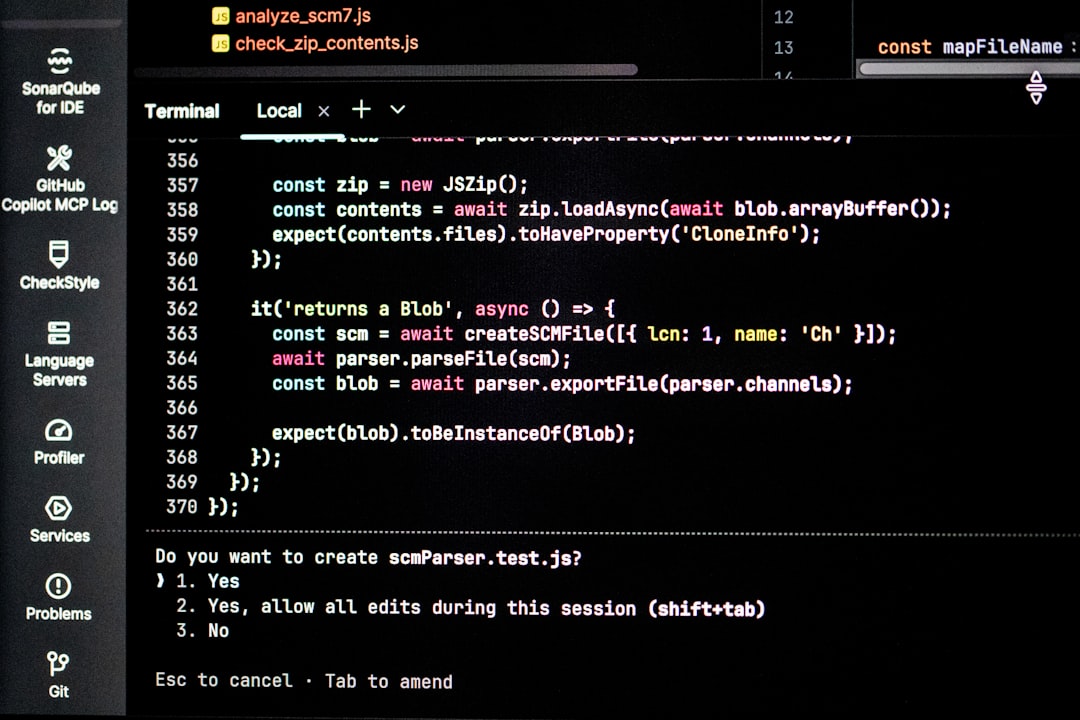
Some site owners pasted the script below other blocking scripts or didn’t paste it in the header as required. As a result, OneTrust failed to load before the geo-detection could happen.
3. IP Address Detection Failures
On occasion, the user’s IP couldn’t be located due to network issues or VPNs. OneTrust, not knowing the country, displayed nothing at all—or the wrong region’s experience.
4. Bugs in Rules or Logic
A few folks double-checked their OneTrust dashboard only to find they had selected the wrong regions. For example, some set the banner to display in “Europe” but not the “European Union.” Oops!
5. Lazy Loading or Tag Managers
If your OneTrust script is set to load too late (like in a tag manager after a pageview), geo-targeting may never trigger correctly. Timing is everything.
How They Fixed It (You Can Too!)
After facepalming through support tickets, emails, and too much coffee, website owners finally figured it out. Here’s what worked for most:
Step 1: Verify Script Placement
- Ensure OneTrust’s script is inside the
<head>tag - It should be one of the first scripts loaded
Step 2: Disable Caching for OneTrust Scripts
- CDNs should be told not to cache cookie banners
- Create a cache rule for OneTrust paths or use your CDN’s “bypass” options
Step 3: Test with VPN or Geo IP Tool
- Use tools like GeoPeeker, BrowserStack, or a VPN to simulate visitors from different EU countries
- Check if the banner appears immediately on page load
Step 4: Double Check Targeting Settings
- In your OneTrust dashboard, go to Geolocation rules
- Make sure GDPR is selected for EU audiences
- Some countries may need to be included manually
Step 5: Use Debug Mode
- Turn on debug mode in OneTrust to see geo info in the console
- This helps identify why a banner isn’t being shown
Step 6: Fallback Rules
- Create a fallback condition where, if user location is unknown, the banner is shown anyway
- Better safe than sorry!
Real-Life Litebulb Moments
Adam, a developer from Berlin, says: “We realized our edge servers cached the US version of the site, including the non-GDPR banner. Once we bypassed the OneTrust script from the cache, it worked instantly.”
Maria, a site manager from Spain, had a “duh” moment: “I had the right script, but I used the version that only triggered on scroll. Our EU goals required immediate notification!”
How to Future-Proof It
Once bitten, twice shy. Most website owners aren’t eager to go through that pain again. Here’s how they’re making sure it doesn’t happen twice:
- Regular Testing: Every quarter, do a cross-region banner check.
- QA Rollout: Have your dev team test banners in staging before going live.
- Failback Zones: Show the banner to “unknown” users to stay on the safe side.
- Documentation: Write down your banner rules and why they exist. Future teams will thank you.
Lessons Learned in Cookie-Land
The web isn’t just about code—it’s about people. And those people have national laws surrounding their data. Website owners learned that even if your intentions are right, your setup still needs to be squeaky clean to stay compliant.
OneTrust is a powerful tool—but like any tool, it needs careful installation and testing. Once people figured out the scope of the geo-targeting logic, they were able to fix bugs quickly and breathe easy again.
So if your EU visitors aren’t seeing your cookie prompt—don’t panic. Get your scripts in line, run some tests, and make OneTrust work the way it’s supposed to.
Final Pro Tips
- Keep OneTrust updated – Use their latest SDKs to benefit from bug fixes.
- Work with your CDN team – They can help fine-tune caching behavior.
- Always think “fallback” – When in doubt, show the banner.
The result? Happy regulators. Happy users. Happy website owners.